> ## Documentation Index
> Fetch the complete documentation index at: https://docs.apimart.ai/llms.txt
> Use this file to discover all available pages before exploring further.
# Using APIMart in ChatBox
> Detailed guide on how to configure and use APIMart API service in ChatBox desktop client. This guide will help you configure APIMart API in ChatBox to access rich AI model resources.
## Prerequisites
Before you begin, please ensure:
1. **ChatBox is installed**
Download and install the version suitable for your operating system from [ChatBox GitHub](https://github.com/Bin-Huang/chatbox) or visit [ChatBox Official Website](https://chatboxai.app/)
2. **APIMart API Key obtained**
Log in to [APIMart Console](https://apimart.ai/keys) to get your API key (starts with `sk-`)
**Tip:** If you don't have an APIMart account yet, please register at [APIMart](https://apimart.ai) and obtain an API key first.
## Step 1: Launch ChatBox and Start Configuration
When launching ChatBox for the first time or adding a new AI provider:
1. Launch the ChatBox application
2. If it's your first time, a configuration wizard will appear automatically
3. Click the **"Use your own API Key or local model"** button
4. If already configured, click the **⚙️ Settings** icon in the bottom left corner, or use the shortcut `Ctrl+,` (Windows/Linux) / `Cmd+,` (macOS)
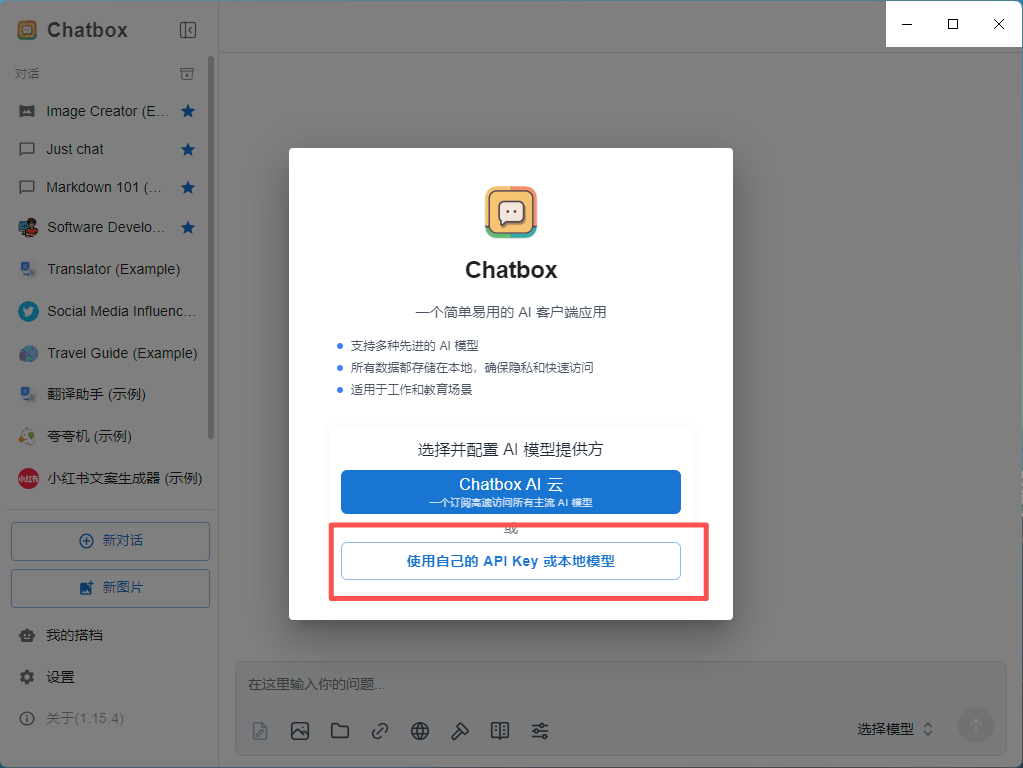 *ChatBox configuration wizard, select to use your own API Key*
## Step 2: Configure APIMart API
### 2.1 Select AI Model Provider
In the settings page:
1. Find the **AI Provider** setting
2. Select **OpenAI API** (for GPT series models), **Claude API** (for Claude series models), or **Gemini API** (for Gemini series models) from the dropdown menu
*ChatBox configuration wizard, select to use your own API Key*
## Step 2: Configure APIMart API
### 2.1 Select AI Model Provider
In the settings page:
1. Find the **AI Provider** setting
2. Select **OpenAI API** (for GPT series models), **Claude API** (for Claude series models), or **Gemini API** (for Gemini series models) from the dropdown menu
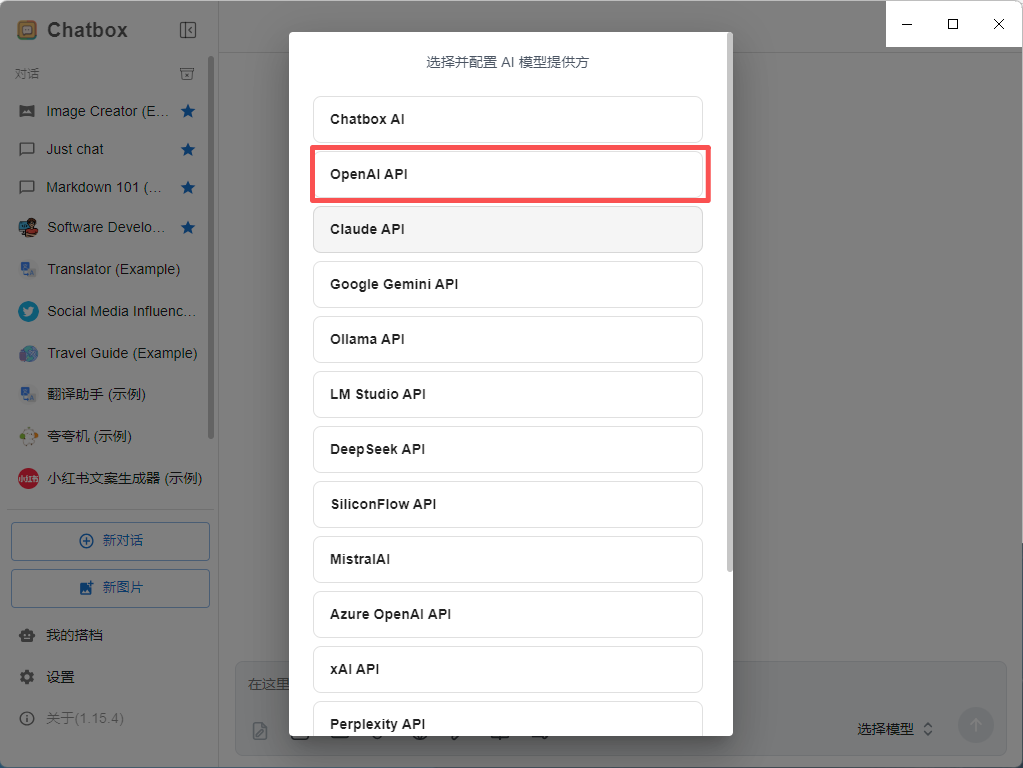 *ChatBox settings page, select OpenAI API as provider*
### 2.2 Configure API Information
After selecting OpenAI API, fill in the following configuration:
| Field | Value |
| ------------------------------ | ---------------------------------------- |
| **API Key** | Your APIMart API key (`sk-xxxxxxxxxxxx`) |
| **API Host** or **API Domain** | `https://api.apimart.ai` |
*ChatBox settings page, select OpenAI API as provider*
### 2.2 Configure API Information
After selecting OpenAI API, fill in the following configuration:
| Field | Value |
| ------------------------------ | ---------------------------------------- |
| **API Key** | Your APIMart API key (`sk-xxxxxxxxxxxx`) |
| **API Host** or **API Domain** | `https://api.apimart.ai` |
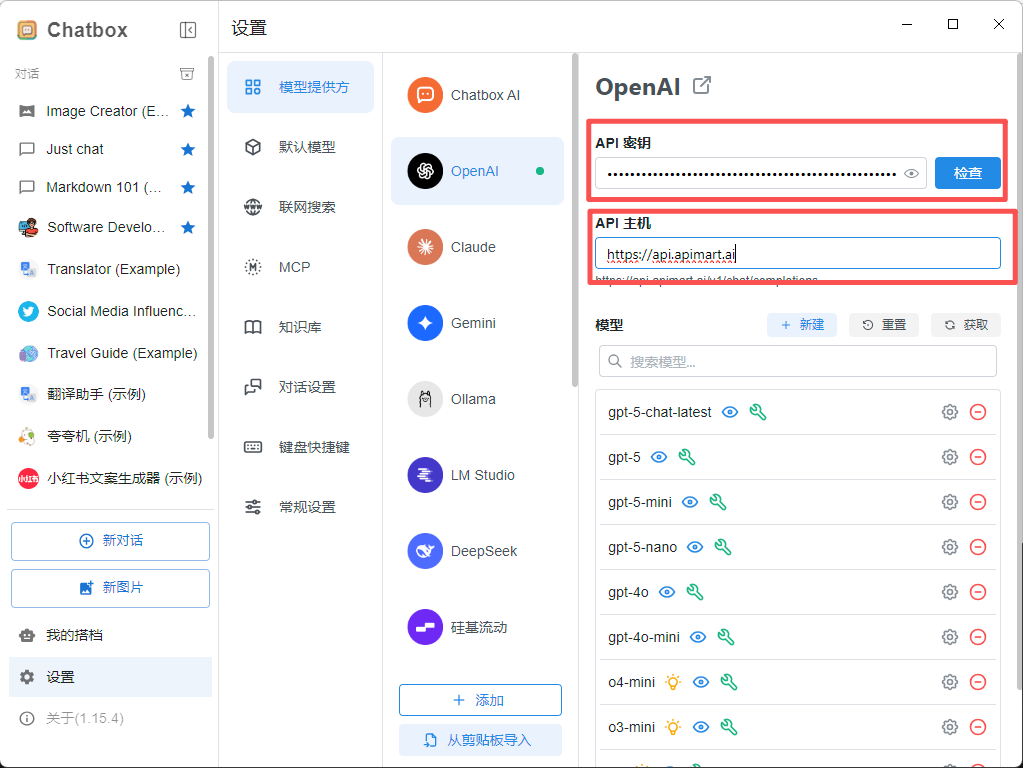 After selecting Claude API, fill in the following configuration:
| Field | Value |
| ------------------------------ | ---------------------------------------- |
| **API Key** | Your APIMart API key (`sk-xxxxxxxxxxxx`) |
| **API Host** or **API Domain** | `https://api.apimart.ai/v1` |
After selecting Claude API, fill in the following configuration:
| Field | Value |
| ------------------------------ | ---------------------------------------- |
| **API Key** | Your APIMart API key (`sk-xxxxxxxxxxxx`) |
| **API Host** or **API Domain** | `https://api.apimart.ai/v1` |
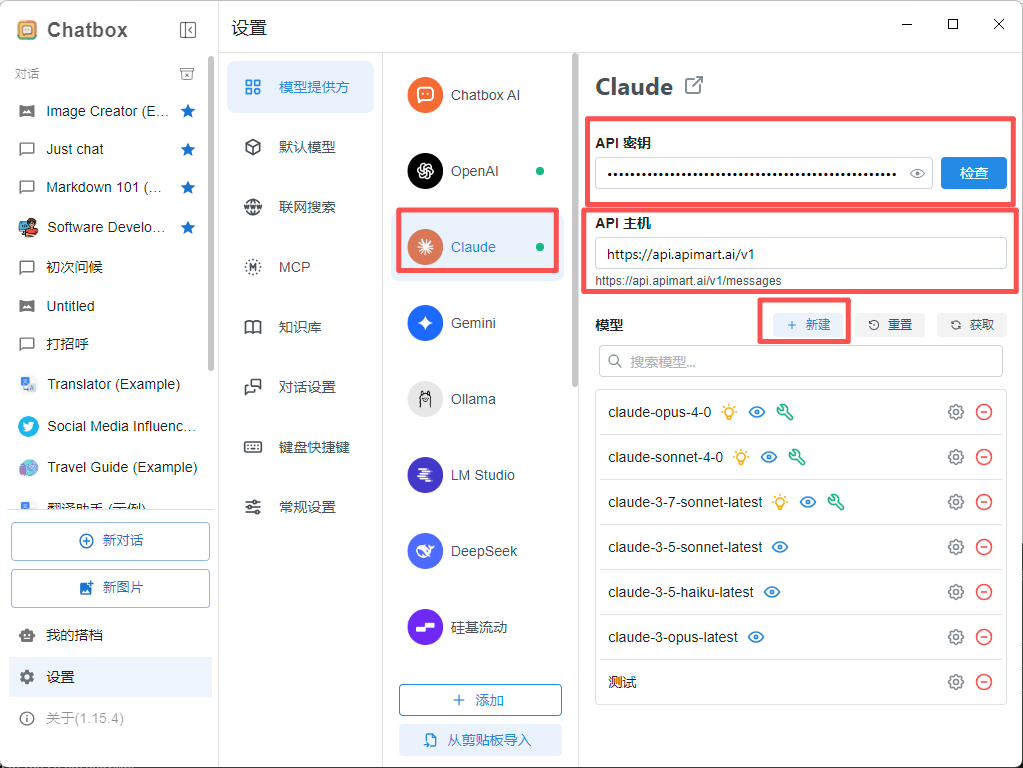 After selecting Gemini API, fill in the following configuration:
| Field | Value |
| ------------------------------ | ---------------------------------------- |
| **API Key** | Your APIMart API key (`sk-xxxxxxxxxxxx`) |
| **API Host** or **API Domain** | `https://api.apimart.ai/` |
*Fill in APIMart's API Key and API Host*
After selecting Gemini API, fill in the following configuration:
| Field | Value |
| ------------------------------ | ---------------------------------------- |
| **API Key** | Your APIMart API key (`sk-xxxxxxxxxxxx`) |
| **API Host** or **API Domain** | `https://api.apimart.ai/` |
*Fill in APIMart's API Key and API Host*
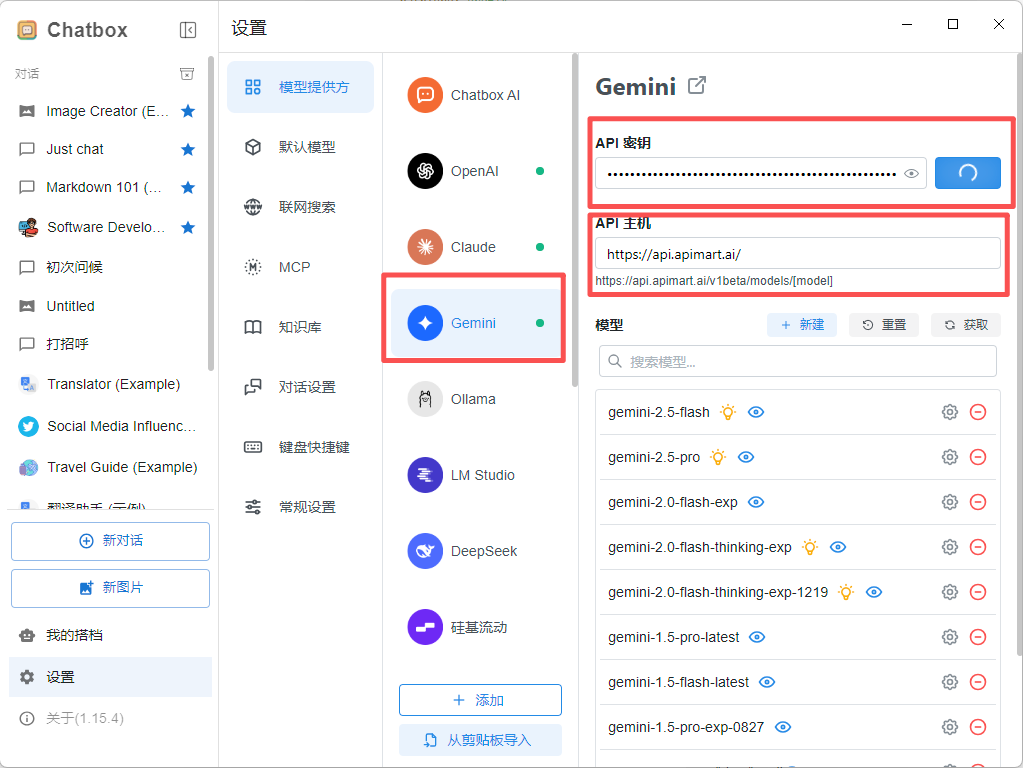 **Important:**
* When using OpenAI API, API Host should be `https://api.apimart.ai` (without `/v1` suffix)
* When using Claude API, API Host should be `https://api.apimart.ai/v1` (with `/v1` suffix)
* When using Gemini API, API Host should be `https://api.apimart.ai/` (without `/v1` suffix)
* API Key must be obtained from APIMart console and start with `sk-`
* Ensure your API key has sufficient balance
### 2.3 Select Model
After configuration, select the model you want to use from the **Model** dropdown:
**Recommended Models:**
| Model Name | Model ID | Features |
| ----------------- | ------------------------------- | ------------------------ |
| GPT-5 | `gpt-5` | Latest and most powerful |
| GPT-4o | `gpt-4o` or `chatgpt-4o-latest` | High-quality chat |
| GPT-4o Mini | `gpt-4o-mini` | Fast and economical |
| Claude Sonnet 4.5 | `claude-sonnet-4-5-20250929` | Excellent for code |
| Claude Haiku 4.5 | `claude-haiku-4-5-20251001` | Fast response |
| Gemini 2.0 Flash | `gemini-2.0-flash-exp` | Multimodal support |
**Special Instructions for Using Claude Models:**
If you choose to use Claude models (such as `claude-sonnet-4-5-20250929` or `claude-haiku-4-5-20251001`), you need the following additional configuration:
1. **Switch to Claude API Provider**:
* Change the **AI Provider** to **Claude API** in settings
* Keep API Host as `https://api.apimart.ai/v1`
* Use your APIMart API key (`sk-xxxxxxxxxxxx`)
2. **Or Add Custom Request Headers** (if using OpenAI API provider):
* Some versions of ChatBox support adding custom Headers
* Add the request header in advanced settings: `anthropic-version: 2023-06-01`
**Recommended Approach:** Use **OpenAI API** for GPT series models, **Claude API** for Claude series models, and **Gemini API** for Gemini series models.
*Select your desired AI model from the list*
**Performance Recommendations:**
* 💰 **Cost-effective:** `gpt-4o-mini`, `claude-haiku-4-5-20251001`
* 🚀 **High-performance:** `gpt-5`, `gpt-4o`, `claude-sonnet-4-5-20250929`
* ⚡ **Fast response:** `gemini-2.0-flash-exp`, `gpt-4o-mini`
## Step 3: Start Using
After configuration, you can start using ChatBox to chat with AI:
1. Return to the main interface
2. Type your question or requirement in the input box
3. Press `Enter` or click the send button
4. AI will generate a reply using APIMart's models
**Important:**
* When using OpenAI API, API Host should be `https://api.apimart.ai` (without `/v1` suffix)
* When using Claude API, API Host should be `https://api.apimart.ai/v1` (with `/v1` suffix)
* When using Gemini API, API Host should be `https://api.apimart.ai/` (without `/v1` suffix)
* API Key must be obtained from APIMart console and start with `sk-`
* Ensure your API key has sufficient balance
### 2.3 Select Model
After configuration, select the model you want to use from the **Model** dropdown:
**Recommended Models:**
| Model Name | Model ID | Features |
| ----------------- | ------------------------------- | ------------------------ |
| GPT-5 | `gpt-5` | Latest and most powerful |
| GPT-4o | `gpt-4o` or `chatgpt-4o-latest` | High-quality chat |
| GPT-4o Mini | `gpt-4o-mini` | Fast and economical |
| Claude Sonnet 4.5 | `claude-sonnet-4-5-20250929` | Excellent for code |
| Claude Haiku 4.5 | `claude-haiku-4-5-20251001` | Fast response |
| Gemini 2.0 Flash | `gemini-2.0-flash-exp` | Multimodal support |
**Special Instructions for Using Claude Models:**
If you choose to use Claude models (such as `claude-sonnet-4-5-20250929` or `claude-haiku-4-5-20251001`), you need the following additional configuration:
1. **Switch to Claude API Provider**:
* Change the **AI Provider** to **Claude API** in settings
* Keep API Host as `https://api.apimart.ai/v1`
* Use your APIMart API key (`sk-xxxxxxxxxxxx`)
2. **Or Add Custom Request Headers** (if using OpenAI API provider):
* Some versions of ChatBox support adding custom Headers
* Add the request header in advanced settings: `anthropic-version: 2023-06-01`
**Recommended Approach:** Use **OpenAI API** for GPT series models, **Claude API** for Claude series models, and **Gemini API** for Gemini series models.
*Select your desired AI model from the list*
**Performance Recommendations:**
* 💰 **Cost-effective:** `gpt-4o-mini`, `claude-haiku-4-5-20251001`
* 🚀 **High-performance:** `gpt-5`, `gpt-4o`, `claude-sonnet-4-5-20250929`
* ⚡ **Fast response:** `gemini-2.0-flash-exp`, `gpt-4o-mini`
## Step 3: Start Using
After configuration, you can start using ChatBox to chat with AI:
1. Return to the main interface
2. Type your question or requirement in the input box
3. Press `Enter` or click the send button
4. AI will generate a reply using APIMart's models
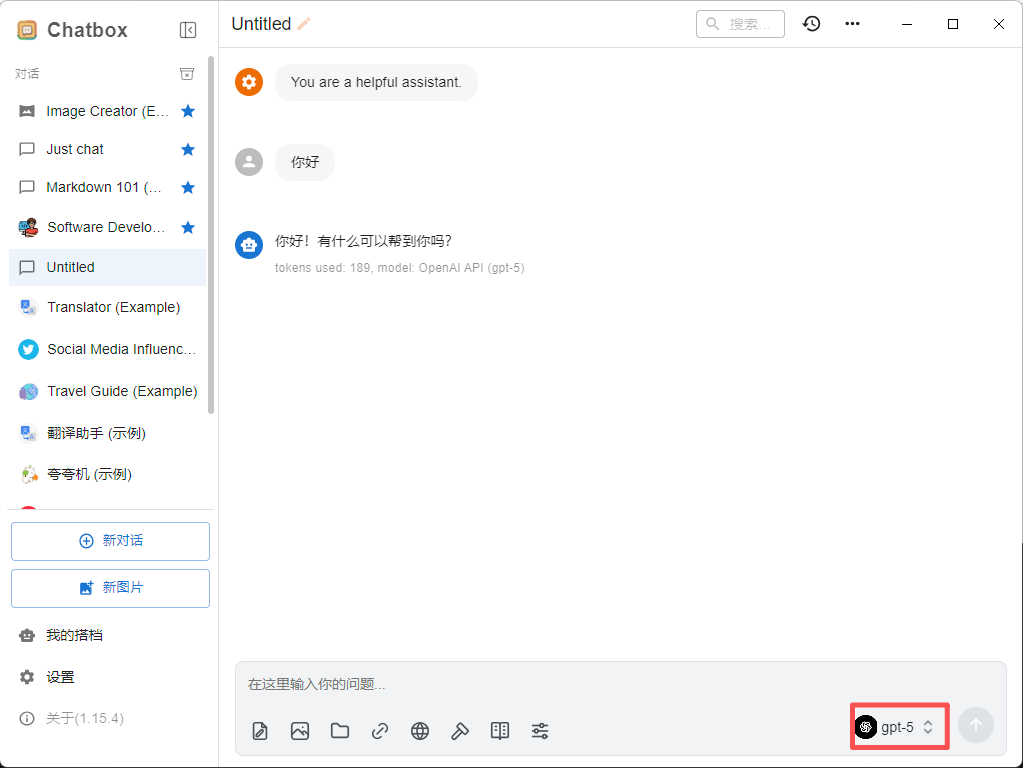 *ChatBox chat interface, start conversing with AI*
### Adjust Model Parameters (Optional)
You can adjust the following parameters as needed:
| Parameter | Description | Recommended Value |
| --------------- | -------------------------- | ------------------------------ |
| **Temperature** | Controls output randomness | 0.7 (creative) / 0.3 (precise) |
| **Max Tokens** | Maximum output length | 2000-4000 |
| **Top P** | Nucleus sampling parameter | 0.9 |
## Advanced Features
### Multi-Session Management
ChatBox supports creating multiple conversation sessions:
1. Click the **New Chat** button
2. Create independent sessions for different tasks
3. Switch between conversations in the left session list
### Save and Export Conversations
1. Right-click on a conversation session
2. Select **Export** option
3. Export as Markdown, JSON, or other formats
### Using Prompt Templates
1. Find **Prompts** settings in the settings menu
2. Save commonly used prompt templates
3. Quickly invoke preset prompts in conversations
## FAQ
### Q1: Cannot connect to APIMart service?
**Solution:**
1. **Check API Host**:
* Ensure it's `https://api.apimart.ai`
* Don't add `/v1` or other paths
2. **Verify API Key**:
* Confirm API Key starts with `sk-`
* Check if the key is valid in [APIMart Console](https://apimart.ai/keys)
3. **Check Network Connection**:
* Ensure you can access `https://api.apimart.ai`
* You may need to configure a proxy if in China
### Q2: APIMart models not showing in model list?
**Solution:**
1. **Manually Enter Model Name**:
* Directly type the model ID in the model input box
* For example: `gpt-4o`, `gpt-4o-mini`, `claude-sonnet-4-5-20250929`
2. **Refresh Model List**:
* Restart ChatBox application
* Reconfigure API information
### Q3: Error messages during conversation?
**Common errors and solutions:**
| Error Message | Cause | Solution |
| --------------------------- | ---------------------------- | ------------------------------------------ |
| `401 Unauthorized` | Invalid or expired API Key | Re-obtain API Key and update configuration |
| `429 Too Many Requests` | Request rate limit exceeded | Wait a moment and retry |
| `500 Internal Server Error` | Temporary server issue | Wait a few minutes and retry |
| `insufficient_quota` | Insufficient account balance | Top up in the console |
### Q4: How to view API usage and costs?
Log in to [APIMart Console](https://apimart.ai/overview) to view:
* 📊 API call statistics
* 💰 Cost details
* 📈 Usage trend charts
* 🔍 Detailed request logs
### Q5: Which platforms does ChatBox support?
ChatBox supports multiple platforms:
* 🪟 **Windows** - Windows 10/11
* 🍎 **macOS** - macOS 10.15+
* 🐧 **Linux** - Major distributions
* 🌐 **Web** - Browser version
## Usage Tips
### 1. Keyboard Shortcuts
Utilize ChatBox keyboard shortcuts for efficiency:
| Shortcut | Function |
| ------------------ | -------------------- |
| `Ctrl/Cmd + Enter` | Send message |
| `Ctrl/Cmd + N` | New chat |
| `Ctrl/Cmd + K` | Search conversations |
| `Ctrl/Cmd + ,` | Open settings |
| `Ctrl/Cmd + /` | Show keyboard help |
### 2. Optimize Prompts
Write better prompts for better responses:
**❌ Poor Prompt:**
```
Write code for me
```
**✅ Good Prompt:**
```
Please help me write a Python function that:
1. Takes a list of strings as input
2. Filters out strings shorter than 3 characters
3. Returns results sorted alphabetically
Please include detailed comments and usage examples
```
### 3. Leverage Conversation History
ChatBox saves conversation history:
* AI remembers context from the current session
* Can continue asking based on previous responses
* Suitable for deep discussions and iterations
### 4. Switch Models
Switch to appropriate models for different tasks:
* **Writing tasks** - Use `gpt-4o` or `claude-sonnet-4-5`
* **Coding tasks** - Use `claude-sonnet-4-5`
* **Quick Q\&A** - Use `gpt-4o-mini`
* **Multimodal** - Use `gemini-2.0-flash-exp`
## Features
Using ChatBox + APIMart, you can:
* 💬 **Smooth Conversations** - Real-time streaming output for smoother experience
* 🎯 **Multi-Session Management** - Manage multiple independent conversations simultaneously
* 💾 **Local Storage** - Conversation records saved locally to protect privacy
* 📤 **Export Conversations** - Support exporting in multiple formats
* 🎨 **Clean Interface** - Simple and beautiful user interface
* 🔒 **Open Source & Free** - Completely open source and free to use
* 🌍 **Cross-Platform** - Supports Windows, macOS, Linux
* 🚀 **Excellent Performance** - Lightweight application, runs smoothly
## Support & Help
If you encounter any issues:
* 📚 [APIMart Documentation](https://docs.apimart.ai)
* 📚 [ChatBox GitHub](https://github.com/Bin-Huang/chatbox)
* 💬 [Discord Community](https://discord.gg/V8zqssyZ5c)
* 🐦 [Twitter @APIMart\_](https://x.com/APIMart_)
* 📧 Technical Support: [zhihong@apimart.ai](mailto:zhihong@apimart.ai)
***
Register for APIMart now, get your API key, and start your AI journey in ChatBox!
*ChatBox chat interface, start conversing with AI*
### Adjust Model Parameters (Optional)
You can adjust the following parameters as needed:
| Parameter | Description | Recommended Value |
| --------------- | -------------------------- | ------------------------------ |
| **Temperature** | Controls output randomness | 0.7 (creative) / 0.3 (precise) |
| **Max Tokens** | Maximum output length | 2000-4000 |
| **Top P** | Nucleus sampling parameter | 0.9 |
## Advanced Features
### Multi-Session Management
ChatBox supports creating multiple conversation sessions:
1. Click the **New Chat** button
2. Create independent sessions for different tasks
3. Switch between conversations in the left session list
### Save and Export Conversations
1. Right-click on a conversation session
2. Select **Export** option
3. Export as Markdown, JSON, or other formats
### Using Prompt Templates
1. Find **Prompts** settings in the settings menu
2. Save commonly used prompt templates
3. Quickly invoke preset prompts in conversations
## FAQ
### Q1: Cannot connect to APIMart service?
**Solution:**
1. **Check API Host**:
* Ensure it's `https://api.apimart.ai`
* Don't add `/v1` or other paths
2. **Verify API Key**:
* Confirm API Key starts with `sk-`
* Check if the key is valid in [APIMart Console](https://apimart.ai/keys)
3. **Check Network Connection**:
* Ensure you can access `https://api.apimart.ai`
* You may need to configure a proxy if in China
### Q2: APIMart models not showing in model list?
**Solution:**
1. **Manually Enter Model Name**:
* Directly type the model ID in the model input box
* For example: `gpt-4o`, `gpt-4o-mini`, `claude-sonnet-4-5-20250929`
2. **Refresh Model List**:
* Restart ChatBox application
* Reconfigure API information
### Q3: Error messages during conversation?
**Common errors and solutions:**
| Error Message | Cause | Solution |
| --------------------------- | ---------------------------- | ------------------------------------------ |
| `401 Unauthorized` | Invalid or expired API Key | Re-obtain API Key and update configuration |
| `429 Too Many Requests` | Request rate limit exceeded | Wait a moment and retry |
| `500 Internal Server Error` | Temporary server issue | Wait a few minutes and retry |
| `insufficient_quota` | Insufficient account balance | Top up in the console |
### Q4: How to view API usage and costs?
Log in to [APIMart Console](https://apimart.ai/overview) to view:
* 📊 API call statistics
* 💰 Cost details
* 📈 Usage trend charts
* 🔍 Detailed request logs
### Q5: Which platforms does ChatBox support?
ChatBox supports multiple platforms:
* 🪟 **Windows** - Windows 10/11
* 🍎 **macOS** - macOS 10.15+
* 🐧 **Linux** - Major distributions
* 🌐 **Web** - Browser version
## Usage Tips
### 1. Keyboard Shortcuts
Utilize ChatBox keyboard shortcuts for efficiency:
| Shortcut | Function |
| ------------------ | -------------------- |
| `Ctrl/Cmd + Enter` | Send message |
| `Ctrl/Cmd + N` | New chat |
| `Ctrl/Cmd + K` | Search conversations |
| `Ctrl/Cmd + ,` | Open settings |
| `Ctrl/Cmd + /` | Show keyboard help |
### 2. Optimize Prompts
Write better prompts for better responses:
**❌ Poor Prompt:**
```
Write code for me
```
**✅ Good Prompt:**
```
Please help me write a Python function that:
1. Takes a list of strings as input
2. Filters out strings shorter than 3 characters
3. Returns results sorted alphabetically
Please include detailed comments and usage examples
```
### 3. Leverage Conversation History
ChatBox saves conversation history:
* AI remembers context from the current session
* Can continue asking based on previous responses
* Suitable for deep discussions and iterations
### 4. Switch Models
Switch to appropriate models for different tasks:
* **Writing tasks** - Use `gpt-4o` or `claude-sonnet-4-5`
* **Coding tasks** - Use `claude-sonnet-4-5`
* **Quick Q\&A** - Use `gpt-4o-mini`
* **Multimodal** - Use `gemini-2.0-flash-exp`
## Features
Using ChatBox + APIMart, you can:
* 💬 **Smooth Conversations** - Real-time streaming output for smoother experience
* 🎯 **Multi-Session Management** - Manage multiple independent conversations simultaneously
* 💾 **Local Storage** - Conversation records saved locally to protect privacy
* 📤 **Export Conversations** - Support exporting in multiple formats
* 🎨 **Clean Interface** - Simple and beautiful user interface
* 🔒 **Open Source & Free** - Completely open source and free to use
* 🌍 **Cross-Platform** - Supports Windows, macOS, Linux
* 🚀 **Excellent Performance** - Lightweight application, runs smoothly
## Support & Help
If you encounter any issues:
* 📚 [APIMart Documentation](https://docs.apimart.ai)
* 📚 [ChatBox GitHub](https://github.com/Bin-Huang/chatbox)
* 💬 [Discord Community](https://discord.gg/V8zqssyZ5c)
* 🐦 [Twitter @APIMart\_](https://x.com/APIMart_)
* 📧 Technical Support: [zhihong@apimart.ai](mailto:zhihong@apimart.ai)
***
Register for APIMart now, get your API key, and start your AI journey in ChatBox!