> ## Documentation Index
> Fetch the complete documentation index at: https://docs.apimart.ai/llms.txt
> Use this file to discover all available pages before exploring further.
# Integrate APIMart with Cline in VSCode
> A detailed guide on how to configure APIMart API service using the Cline extension in Visual Studio Code. This guide will help you use APIMart's AI models through Cline for code development, debugging, and optimization in VSCode.
## Introduction
Cline (formerly Claude Dev) is a powerful VSCode extension that allows developers to interact with AI assistants directly in the editor, performing tasks such as code writing, debugging, and refactoring. By configuring the APIMart API, you can use various advanced AI models in Cline.
## Prerequisites
Before you begin, please ensure:
1. **Visual Studio Code is installed**\
Download and install VSCode from the [official website](https://code.visualstudio.com/)
2. **Cline extension is installed**\
Search for "Cline" in the VSCode extension marketplace and install it
3. **APIMart API key obtained**\
Log in to the [APIMart Console](https://apimart.ai/keys) to get your API key (starts with `sk-`)
**Tip:** If you don't have an APIMart account yet, please register at [APIMart](https://apimart.ai) first and obtain an API key.
## Step 1: Install Cline Extension
### 1.1 Open Extension Marketplace
In VSCode:
1. Click the **Extensions** icon in the left activity bar (or press `Ctrl+Shift+X` / `Cmd+Shift+X`)
2. Type **Cline** in the search box
3. Find the Cline extension (by Cline)
4. Click the **Install** button
### 1.2 Verify Installation
After installation:
1. The **Cline** icon (robot head) will appear in the left activity bar
2. Click the icon to open the Cline sidebar
3. On first open, you'll see the welcome message "Hi, I'm Cline"
4. Two options are displayed:
* **Get Started for Free** - Use the official free trial
* **Use your own API key** - Use your own API key
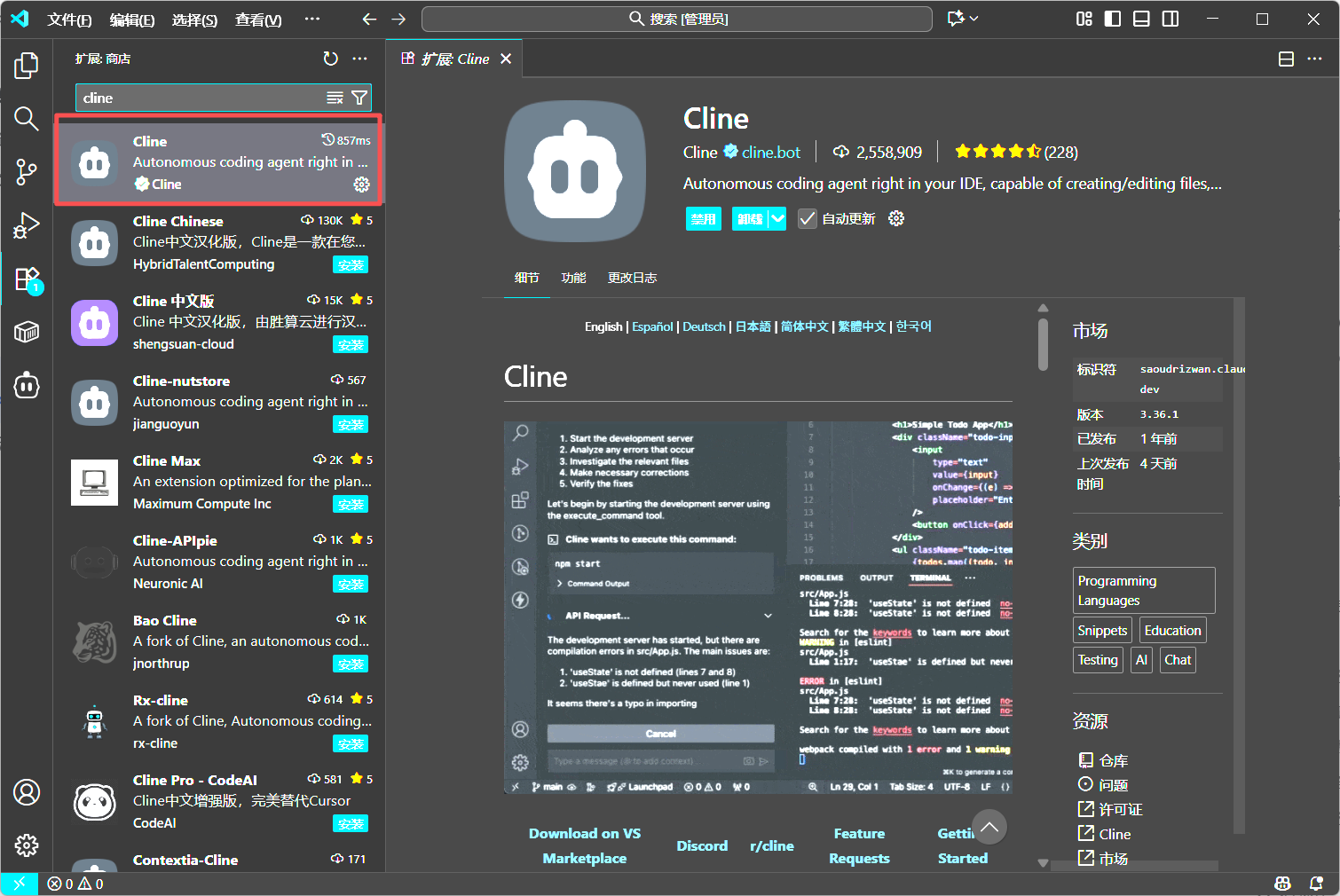 *Search and install Cline in the VSCode extension marketplace*
## Step 2: Configure APIMart API
### 2.1 Choose to Use Your Own API Key
On the Cline welcome screen:
1. Click the **Use your own API key** button
2. This will open the API configuration interface
*Search and install Cline in the VSCode extension marketplace*
## Step 2: Configure APIMart API
### 2.1 Choose to Use Your Own API Key
On the Cline welcome screen:
1. Click the **Use your own API key** button
2. This will open the API configuration interface
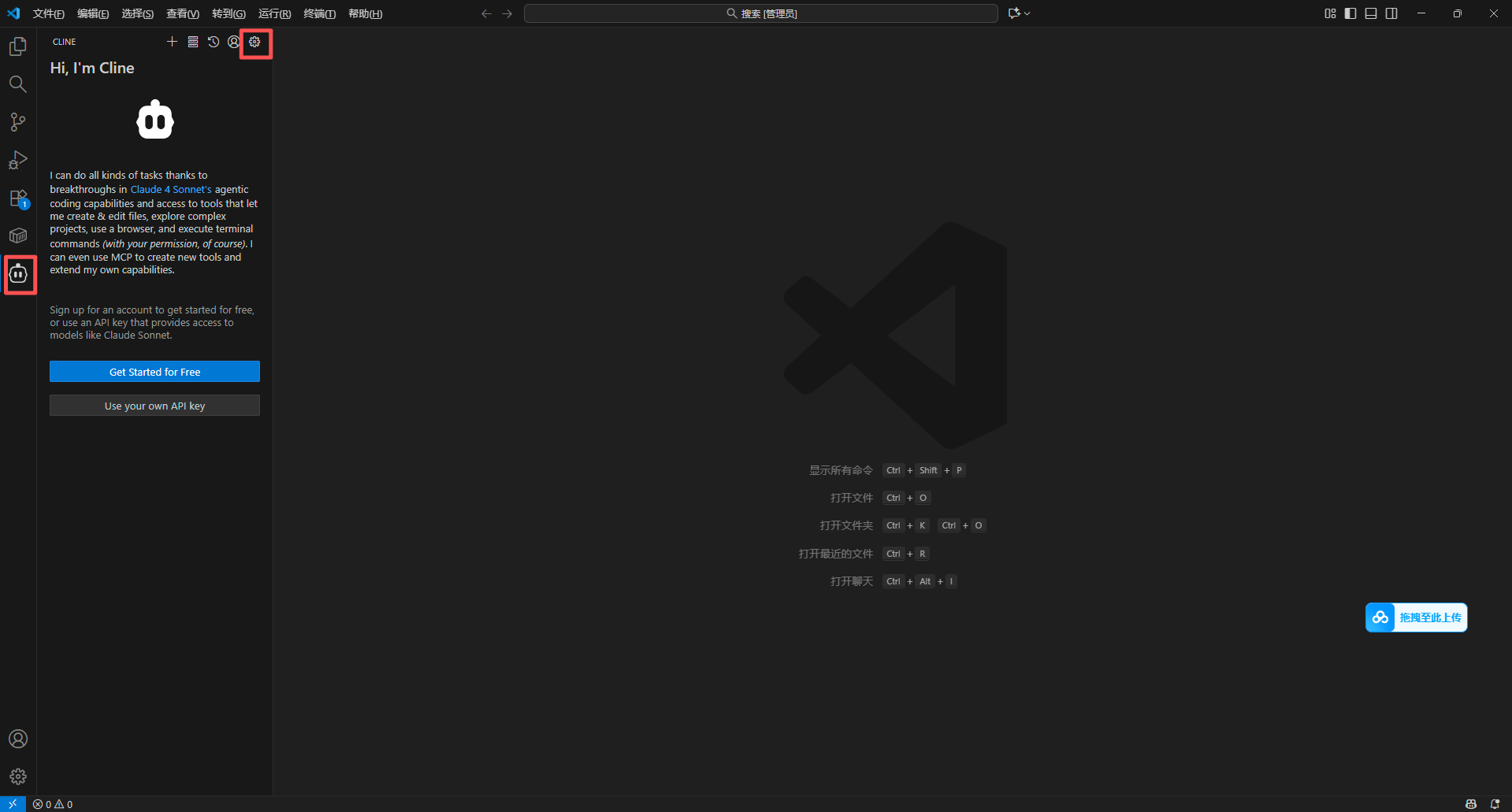 *Cline welcome screen, select "Use your own API key" to use APIMart*
**Tip:** If you've configured before, you can click the **Settings** (gear icon) at the top of the Cline sidebar to access configuration.
### 2.2 Configure API Provider
In the Settings interface:
1. Expand the **API Configuration** section
2. Select **OpenAI Compatible** from the **API Provider** dropdown
3. This will display OpenAI compatible configuration options
**Important:** APIMart is fully compatible with the OpenAI API format, so selecting "OpenAI Compatible" is appropriate.
### 2.3 Fill in API Configuration
Fill in the following configuration information:
| Setting | Value | Description |
| ----------------------------- | --------------------------------------- | ------------------------- |
| **API Provider** | `OpenAI Compatible` | Select from dropdown |
| **Base URL** | `https://api.apimart.ai/v1` | APIMart API base URL |
| **OpenAI Compatible API Key** | `sk-xxxxxxxxxxxx` | Your APIMart API key |
| **Model ID** | `gpt-5` or `claude-sonnet-4-5-20250929` | Enter the model ID to use |
*Cline welcome screen, select "Use your own API key" to use APIMart*
**Tip:** If you've configured before, you can click the **Settings** (gear icon) at the top of the Cline sidebar to access configuration.
### 2.2 Configure API Provider
In the Settings interface:
1. Expand the **API Configuration** section
2. Select **OpenAI Compatible** from the **API Provider** dropdown
3. This will display OpenAI compatible configuration options
**Important:** APIMart is fully compatible with the OpenAI API format, so selecting "OpenAI Compatible" is appropriate.
### 2.3 Fill in API Configuration
Fill in the following configuration information:
| Setting | Value | Description |
| ----------------------------- | --------------------------------------- | ------------------------- |
| **API Provider** | `OpenAI Compatible` | Select from dropdown |
| **Base URL** | `https://api.apimart.ai/v1` | APIMart API base URL |
| **OpenAI Compatible API Key** | `sk-xxxxxxxxxxxx` | Your APIMart API key |
| **Model ID** | `gpt-5` or `claude-sonnet-4-5-20250929` | Enter the model ID to use |
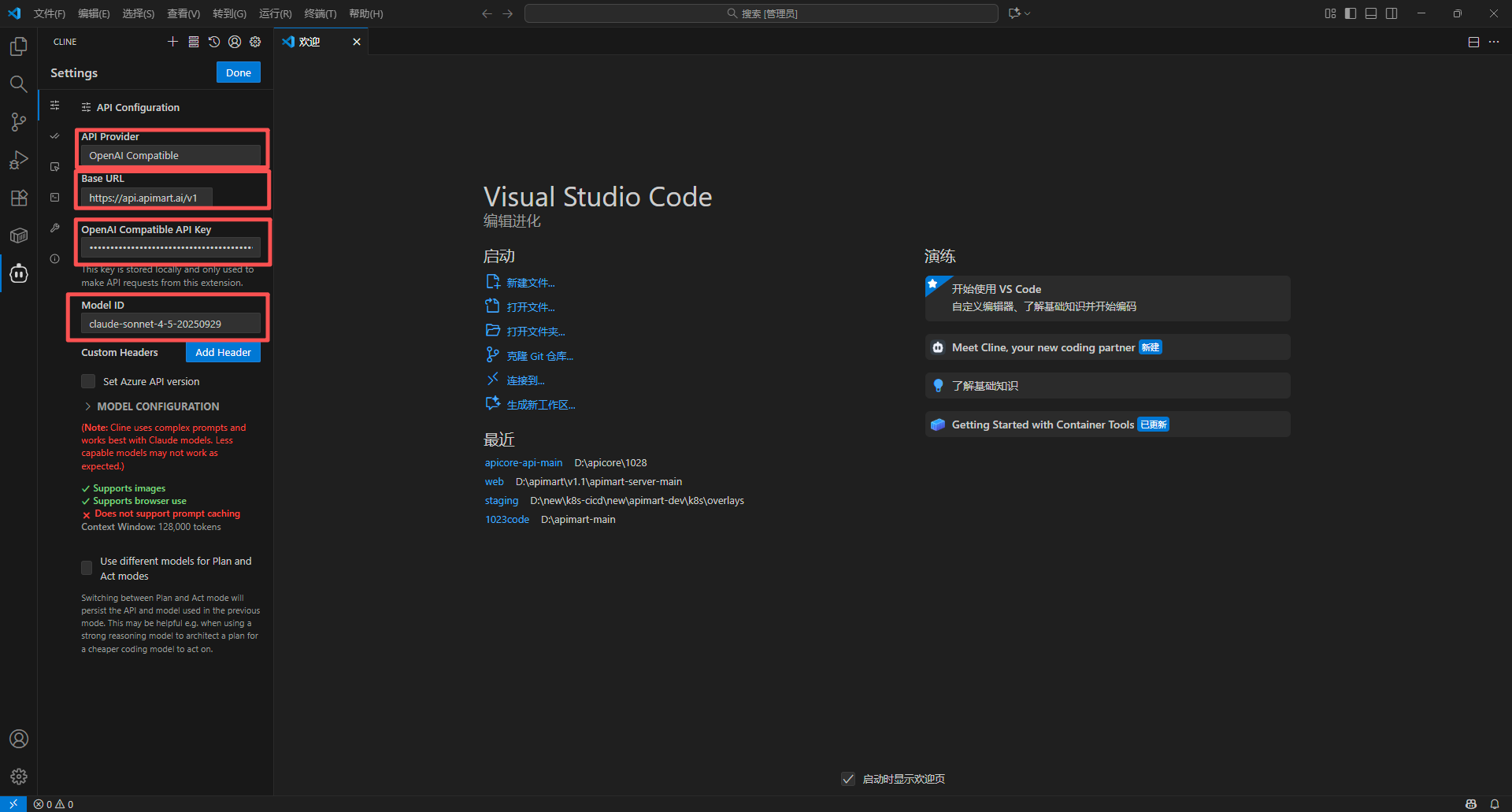 *Configure API Provider, Base URL, API Key, and Model ID in the Settings interface*
**Configuration Notes:**
* **API Key**: Must be the key starting with `sk-` obtained from [APIMart Console](https://apimart.ai/keys)
* **Base URL**: Fixed as `https://api.apimart.ai/v1`, note the `/v1` suffix
* **Model ID**: Enter the model ID directly, such as `gpt-5`, `gpt-4o`, `claude-sonnet-4-5-20250929`, etc.
* The configuration interface will display the model's capabilities below (e.g., image support, browser usage)
### 2.4 Save Configuration
After configuration:
1. Click the **Done** button in the top right corner
2. Configuration is saved automatically
3. Cline will immediately connect to APIMart using the new configuration
4. Return to the Cline main interface, showing "What can I do for you?"
## Step 3: Choose the Right Model
### Recommended Models
Choose the appropriate model based on different development scenarios:
**Text Generation & Code Development:**
* **gpt-5** ⭐ Latest model, highest code generation quality
* Suitable for: Complex algorithms, architecture design, code refactoring
* Features: Strong comprehension, high code quality
* **gpt-4o** High-performance model
* Suitable for: Daily development, code review, bug fixing
* Features: Fast, stable quality
* **gpt-4o-mini** 💰 Cost-effective
* Suitable for: Simple code generation, comment writing, documentation
* Features: Great value, quick response
**Claude Series (Strong Reasoning):**
* **claude-sonnet-4-5-20250929**
* Suitable for: Complex logical reasoning, algorithm optimization
* Features: Excellent reasoning, great for complex problems
* **claude-haiku-4-5-20251001**
* Suitable for: Quick code completion, simple Q\&A
* Features: Extremely fast, low cost
**Model Selection Tips:**
* 🚀 **Complex projects, important features:** `gpt-5`, `gpt-4o`, `claude-sonnet-4-5-20250929`
* 💼 **Daily development, routine tasks:** `gpt-4o`, `gpt-4o-mini`
* 💰 **Cost-sensitive, high-frequency use:** `gpt-4o-mini`, `claude-haiku-4-5-20251001`
### Switching Models
At the bottom of the Cline main interface:
1. Find the model button below the input box (shows current model, e.g., `openai-compatible:clau...`)
2. Click this button to switch models
3. Or modify the **Model ID** field in settings
4. Changes take effect immediately, no VSCode restart needed
**Tip:** The current model is shown on the button below the input box; click to quickly switch.
## Step 4: Start Using Cline
### 4.1 Basic Conversation
After configuration, chat with the AI assistant:
1. The Cline main interface will show "**What can I do for you?**"
2. Enter your request in the input box at the bottom (shows "Type your task here...")
3. For example: "Create a function to calculate the Fibonacci sequence"
4. Press `Enter` to send
5. AI will analyze your request, generate code, and can apply it directly to your project
6. Each step's progress is displayed in the sidebar
### 4.2 Code Generation
Let AI generate code:
**Example 1: Create a function**
```
Please create a JavaScript function to validate email address format
```
**Example 2: Implement a feature**
```
Help me implement a user login form with email and password inputs using React Hooks
```
**Example 3: Write tests**
```
Write unit tests for the calculateTotal function using Jest
```
*Configure API Provider, Base URL, API Key, and Model ID in the Settings interface*
**Configuration Notes:**
* **API Key**: Must be the key starting with `sk-` obtained from [APIMart Console](https://apimart.ai/keys)
* **Base URL**: Fixed as `https://api.apimart.ai/v1`, note the `/v1` suffix
* **Model ID**: Enter the model ID directly, such as `gpt-5`, `gpt-4o`, `claude-sonnet-4-5-20250929`, etc.
* The configuration interface will display the model's capabilities below (e.g., image support, browser usage)
### 2.4 Save Configuration
After configuration:
1. Click the **Done** button in the top right corner
2. Configuration is saved automatically
3. Cline will immediately connect to APIMart using the new configuration
4. Return to the Cline main interface, showing "What can I do for you?"
## Step 3: Choose the Right Model
### Recommended Models
Choose the appropriate model based on different development scenarios:
**Text Generation & Code Development:**
* **gpt-5** ⭐ Latest model, highest code generation quality
* Suitable for: Complex algorithms, architecture design, code refactoring
* Features: Strong comprehension, high code quality
* **gpt-4o** High-performance model
* Suitable for: Daily development, code review, bug fixing
* Features: Fast, stable quality
* **gpt-4o-mini** 💰 Cost-effective
* Suitable for: Simple code generation, comment writing, documentation
* Features: Great value, quick response
**Claude Series (Strong Reasoning):**
* **claude-sonnet-4-5-20250929**
* Suitable for: Complex logical reasoning, algorithm optimization
* Features: Excellent reasoning, great for complex problems
* **claude-haiku-4-5-20251001**
* Suitable for: Quick code completion, simple Q\&A
* Features: Extremely fast, low cost
**Model Selection Tips:**
* 🚀 **Complex projects, important features:** `gpt-5`, `gpt-4o`, `claude-sonnet-4-5-20250929`
* 💼 **Daily development, routine tasks:** `gpt-4o`, `gpt-4o-mini`
* 💰 **Cost-sensitive, high-frequency use:** `gpt-4o-mini`, `claude-haiku-4-5-20251001`
### Switching Models
At the bottom of the Cline main interface:
1. Find the model button below the input box (shows current model, e.g., `openai-compatible:clau...`)
2. Click this button to switch models
3. Or modify the **Model ID** field in settings
4. Changes take effect immediately, no VSCode restart needed
**Tip:** The current model is shown on the button below the input box; click to quickly switch.
## Step 4: Start Using Cline
### 4.1 Basic Conversation
After configuration, chat with the AI assistant:
1. The Cline main interface will show "**What can I do for you?**"
2. Enter your request in the input box at the bottom (shows "Type your task here...")
3. For example: "Create a function to calculate the Fibonacci sequence"
4. Press `Enter` to send
5. AI will analyze your request, generate code, and can apply it directly to your project
6. Each step's progress is displayed in the sidebar
### 4.2 Code Generation
Let AI generate code:
**Example 1: Create a function**
```
Please create a JavaScript function to validate email address format
```
**Example 2: Implement a feature**
```
Help me implement a user login form with email and password inputs using React Hooks
```
**Example 3: Write tests**
```
Write unit tests for the calculateTotal function using Jest
```
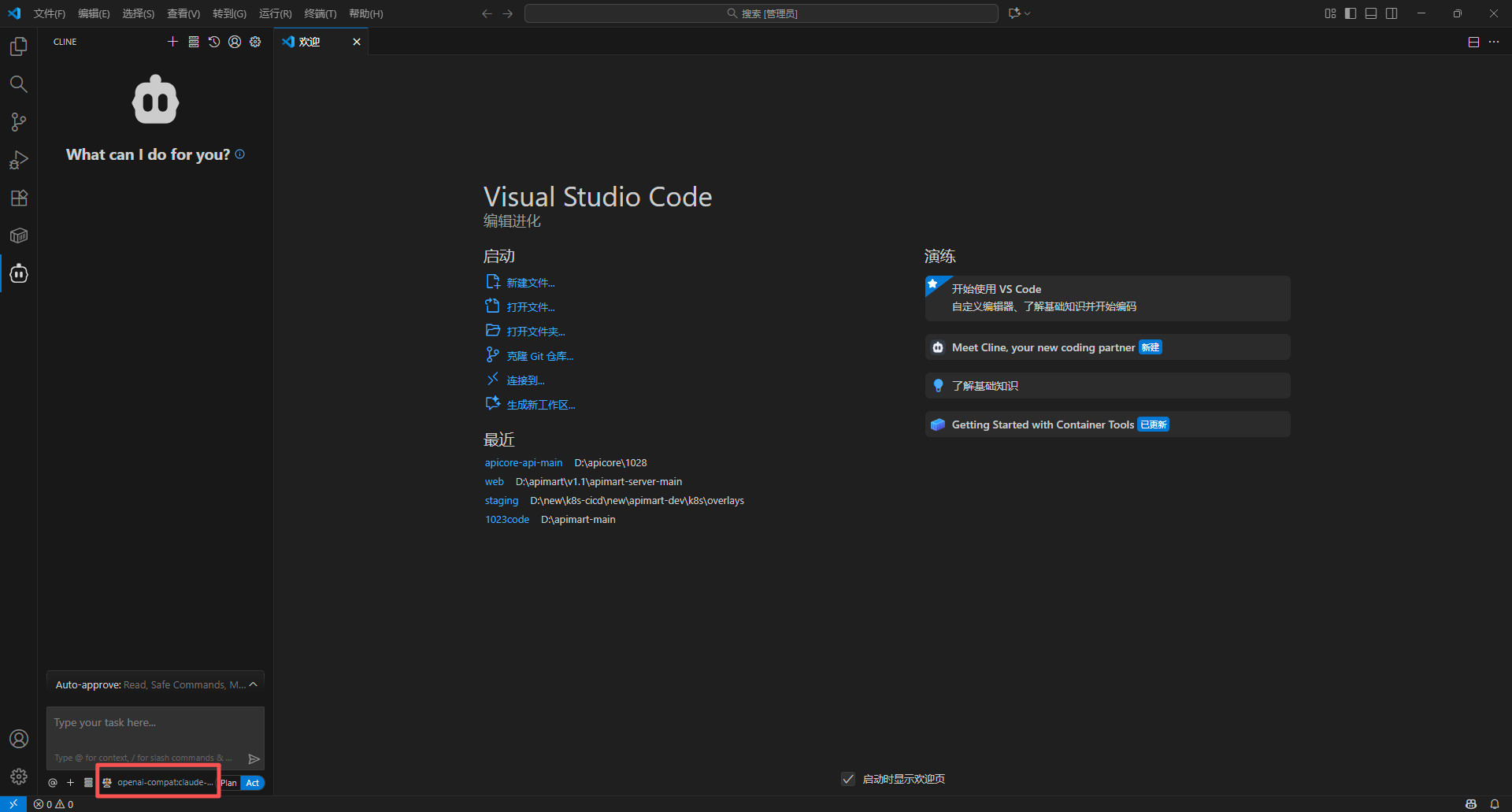 *Chat with AI in Cline to generate code*
### 4.3 Code Explanation and Improvement
Analyze and optimize existing code:
**Right-click menu shortcuts:**
1. Select the code you want to process in the editor
2. Right-click to see Cline options:
* **Explain with Cline** - Explain the code's functionality and logic
* **Improve with Cline** - Optimize and improve the code
3. Select the corresponding action
4. Cline will display analysis results and improvement suggestions in the sidebar
**Through conversation:**
You can also type directly in the Cline sidebar:
```
Refactor this code to improve readability and performance
```
*Chat with AI in Cline to generate code*
### 4.3 Code Explanation and Improvement
Analyze and optimize existing code:
**Right-click menu shortcuts:**
1. Select the code you want to process in the editor
2. Right-click to see Cline options:
* **Explain with Cline** - Explain the code's functionality and logic
* **Improve with Cline** - Optimize and improve the code
3. Select the corresponding action
4. Cline will display analysis results and improvement suggestions in the sidebar
**Through conversation:**
You can also type directly in the Cline sidebar:
```
Refactor this code to improve readability and performance
```
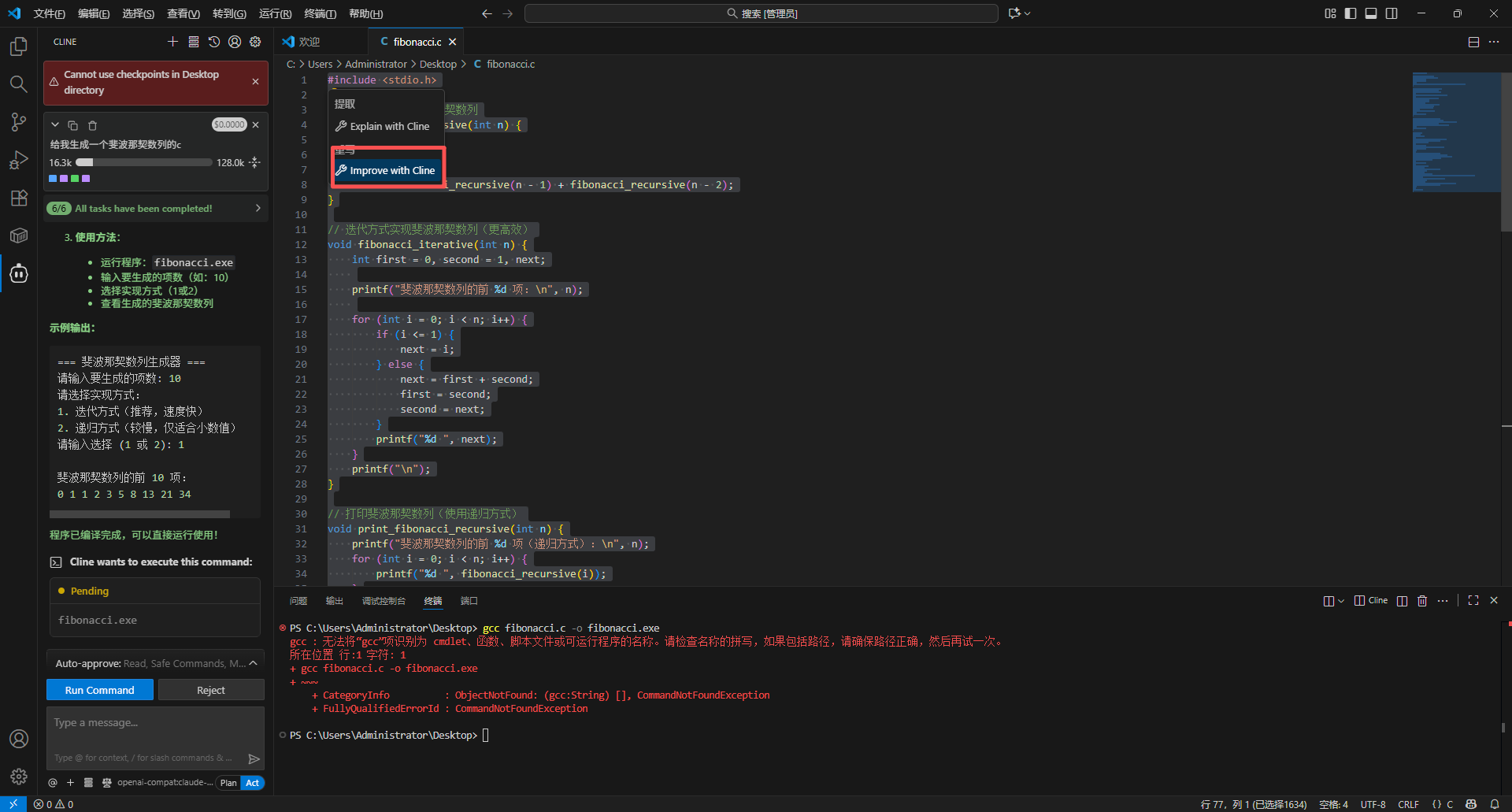 *Right-click to use "Explain with Cline" or "Improve with Cline" for quick code processing*
### 4.4 Bug Debugging
Find and fix errors:
1. Send error messages or problematic code to Cline
2. For example: "This code throws an error: TypeError: Cannot read property 'name' of undefined"
3. AI will analyze the problem and provide solutions
4. You can apply the fix directly
### 4.5 Code Explanation
Understand complex code:
1. Select a difficult-to-understand code snippet
2. Type in Cline: "Explain what this code does"
3. AI will provide a detailed explanation and how it works
### 4.6 Documentation Generation
Automatically generate code documentation:
**Generate function comments:**
```
Add JSDoc comments to this function
```
**Generate README:**
```
Generate a README.md file for this project
```
## Advanced Features
### Multi-file Operations
Cline can handle multiple files simultaneously:
1. **Create multiple files**:
```
Create a complete Express.js API with routes, controllers, and model files
```
2. **Batch modifications**:
```
Replace all var with const or let in the project
```
3. **Project refactoring**:
```
Migrate this project from JavaScript to TypeScript
```
*Cline can create and modify multiple files simultaneously*
### Terminal Command Execution
Cline can help execute terminal commands:
1. **Install dependencies**:
```
Install axios and dotenv packages
```
2. **Run scripts**:
```
Run npm test
```
3. **Git operations**:
```
Create a Git commit with the message "feat: add user authentication"
```
**Command execution flow:**
1. Cline will display "**Cline wants to execute this command:**" in the sidebar
2. Shows the specific command (e.g., `gcc fibonacci.c -o fibonacci.exe`)
3. Two buttons appear at the bottom:
* **Run Command** - Execute the command
* **Reject** - Refuse to execute
4. After clicking "Run Command", the command runs in the integrated terminal
5. Results are displayed in both the terminal and Cline sidebar
**Security Note:** Cline requires your explicit confirmation before executing terminal commands. Please carefully check the command content, especially for sensitive operations involving file deletion or system configuration, before clicking "Run Command".
### Context Management
Cline automatically manages conversation context:
* **Current file context**: Automatically includes the file being edited
* **Selected code context**: Automatically includes code snippets you select
* **Project structure context**: Understands your project structure
* **Error message context**: Automatically captures terminal error messages
### Custom Prompts
Create custom prompt templates:
1. Find **Custom Instructions** in Cline settings
2. Add your preferences, for example:
```
- Use TypeScript instead of JavaScript
- Follow Airbnb code style
- Use arrow function syntax
- Prefer functional programming style
```
3. AI will follow these instructions in all interactions
## FAQ
### Q1: Cline says API key is invalid?
**Solutions:**
1. **Check API Key format**:
* Confirm the API Key starts with `sk-`
* Ensure it's copied completely without extra spaces
2. **Check Base URL**:
* Must be `https://api.apimart.ai/v1`
* Note the `/v1` suffix
3. **Verify key validity**:
* Check key status at [APIMart Console](https://apimart.ai/keys)
* Confirm sufficient account balance
4. **Reconfigure**:
* Delete existing configuration
* Re-enter API Key and Base URL
### Q2: Cline responds slowly?
**Solutions:**
1. **Switch to a faster model**:
* Use `gpt-4o-mini` or `claude-haiku-4-5-20251001`
* These models respond faster
2. **Reduce context length**:
* Avoid sending very long code at once
* Break large tasks into smaller ones
3. **Check network connection**:
* Ensure stable network
* Consider using a proxy server
4. **Optimize request content**:
* Ask more specific questions
* Avoid vague or overly broad questions
### Q3: Cline generates low-quality code?
**Solutions:**
1. **Use higher-quality models**:
* Switch to `gpt-5` or `claude-sonnet-4-5-20250929`
* These models produce higher quality code
2. **Provide more detailed requirements**:
* Clearly state expected implementation
* Provide example code or references
* Specify tech stack and framework versions
3. **Use custom instructions**:
* Add code standards in settings
* Specify coding style and best practices
4. **Iterative optimization**:
* Have multiple conversation rounds with AI
* Gradually improve code quality
### Q4: How to manage API usage costs?
**Solutions:**
1. **Choose appropriate models**:
* Use `gpt-4o-mini` for daily development
* Use `gpt-5` for complex tasks
2. **Optimize question approach**:
* Be as specific as possible
* Avoid repeating the same questions
3. **Use code selection**:
* Only select the code portion that needs processing
* Avoid sending entire file context
4. **Monitor usage**:
* Regularly check the [APIMart Console](https://apimart.ai/overview)
* Understand API call frequency and costs
### Q5: Cline can't access certain files?
**Solutions:**
1. **Check file permissions**:
* Ensure files have read/write permissions
* Especially on Linux/macOS systems
2. **Check .gitignore**:
* Cline ignores files in .gitignore by default
* You can adjust this behavior in settings
3. **Workspace settings**:
* Ensure files are within the VSCode workspace
* Check workspace trust settings
4. **Reload VSCode**:
* Use `Ctrl+Shift+P` / `Cmd+Shift+P`
* Run the "Reload Window" command
## Usage Tips
### 1. Leverage Context Fully
**Provide complete information:**
```
I have an Express.js project using MongoDB database.
Please help me create a user authentication system including registration, login, and JWT token verification.
Project structure is:
- src/models/
- src/controllers/
- src/routes/
- src/middleware/
```
### 2. Incremental Development
**Start simple, gradually refine:**
```
Step 1: Create the basic user model
Step 2: Add password encryption
Step 3: Implement registration and login endpoints
Step 4: Add JWT token verification
```
### 3. Code Review Assistant
**Let AI review your code:**
```
Please review this code, checking for:
1. Potential security issues
2. Performance optimization opportunities
3. Code style issues
4. Possible bugs
```
### 4. Learn New Technologies
**Use Cline to learn:**
```
I want to learn React Hooks.
Please create a sample project demonstrating useState, useEffect, useContext usage,
and add detailed comments explaining how each Hook works.
```
### 5. Rapid Prototyping
**Quickly validate ideas:**
```
Create a simple todo app with requirements:
- Use React and LocalStorage
- Can add, delete, mark as complete
- Simple CSS styling
- Complete in a single HTML file
```
### 6. Pair Programming
**Collaborate with AI:**
```
I'm implementing a sorting algorithm,
I wrote the first half, please help me complete the rest:
function quickSort(arr) {
if (arr.length <= 1) return arr;
const pivot = arr[0];
// Please continue implementation...
}
```
## Feature Highlights
With Cline + APIMart, you can:
* 💻 **Intelligent Code Generation** - Generate high-quality code from natural language descriptions
* 🔧 **Code Refactoring** - Automatically optimize code structure and performance
* 🐛 **Bug Debugging Assistance** - Quickly locate and fix code issues
* 📝 **Documentation Generation** - Generate comments, README, API documentation
* 🧪 **Test Case Writing** - Automatically generate unit and integration tests
* 🔄 **Code Migration** - Language conversion, framework migration
* 💡 **Code Explanation** - Understand complex code logic
* 🎯 **Best Practice Suggestions** - Provide code standards and optimization advice
* 🚀 **Rapid Prototyping** - Quickly validate ideas and concepts
* 🤖 **Terminal Command Execution** - Automatically execute development commands
## Keyboard Shortcuts
Common Cline shortcuts:
| Shortcut | Function | Description |
| ------------------------------ | --------------------- | ----------------------------- |
| `Ctrl+Shift+P` / `Cmd+Shift+P` | Command Palette | Access all Cline commands |
| `Ctrl+Shift+X` / `Cmd+Shift+X` | Extension Marketplace | Install and manage extensions |
| Click Cline icon | Open/Close sidebar | Quick access to Cline |
| `Ctrl+K Ctrl+I` | Inline suggestions | Get AI suggestions in editor |
**Tip:** You can customize Cline's shortcuts in VSCode's keyboard shortcuts settings.
## Best Practices
### 1. Clear Task Description
❌ **Poor question:**
```
Write a login feature
```
✅ **Good question:**
```
Create a user login feature with requirements:
- Use React and TypeScript
- Form validation (email format, password length)
- Use axios to call API
- Store JWT token to localStorage on successful login
- Error handling and user feedback
```
### 2. Provide Context Information
**Include project-related information:**
* Tech stack and frameworks used
* Relevant file structure
* Existing code conventions
* Third-party library dependencies
### 3. Iterative Improvement
**Don't expect perfection the first time:**
1. Generate basic functionality first
2. Test and validate
3. Provide improvement feedback
4. Gradually refine
### 4. Code Review
**Always review generated code:**
* Check logical correctness
* Verify security
* Test edge cases
* Ensure compliance with project standards
### 5. Maintain Conversation Continuity
**Leverage context continuity:**
```
Round 1: Create user model
Round 2: Based on the model just created, create CRUD endpoints
Round 3: Add permission validation to these endpoints
```
## Support & Help
If you encounter any issues:
* 📚 [APIMart Documentation](https://docs.apimart.ai)
* 📚 [Cline Official Documentation](https://github.com/clinebot/cline)
* 💬 [Discord Community](https://discord.gg/V8zqssyZ5c)
* 🐦 [Twitter @APIMart\_](https://x.com/APIMart_)
* 📧 Technical Support: [zhihong@apimart.ai](mailto:zhihong@apimart.ai)
## Video Tutorials
**Coming Soon:** We are creating detailed video tutorials covering various use cases and best practices for Cline + APIMart.
***
Register for APIMart now, get your API key, and experience AI-assisted development in VSCode!
*Right-click to use "Explain with Cline" or "Improve with Cline" for quick code processing*
### 4.4 Bug Debugging
Find and fix errors:
1. Send error messages or problematic code to Cline
2. For example: "This code throws an error: TypeError: Cannot read property 'name' of undefined"
3. AI will analyze the problem and provide solutions
4. You can apply the fix directly
### 4.5 Code Explanation
Understand complex code:
1. Select a difficult-to-understand code snippet
2. Type in Cline: "Explain what this code does"
3. AI will provide a detailed explanation and how it works
### 4.6 Documentation Generation
Automatically generate code documentation:
**Generate function comments:**
```
Add JSDoc comments to this function
```
**Generate README:**
```
Generate a README.md file for this project
```
## Advanced Features
### Multi-file Operations
Cline can handle multiple files simultaneously:
1. **Create multiple files**:
```
Create a complete Express.js API with routes, controllers, and model files
```
2. **Batch modifications**:
```
Replace all var with const or let in the project
```
3. **Project refactoring**:
```
Migrate this project from JavaScript to TypeScript
```
*Cline can create and modify multiple files simultaneously*
### Terminal Command Execution
Cline can help execute terminal commands:
1. **Install dependencies**:
```
Install axios and dotenv packages
```
2. **Run scripts**:
```
Run npm test
```
3. **Git operations**:
```
Create a Git commit with the message "feat: add user authentication"
```
**Command execution flow:**
1. Cline will display "**Cline wants to execute this command:**" in the sidebar
2. Shows the specific command (e.g., `gcc fibonacci.c -o fibonacci.exe`)
3. Two buttons appear at the bottom:
* **Run Command** - Execute the command
* **Reject** - Refuse to execute
4. After clicking "Run Command", the command runs in the integrated terminal
5. Results are displayed in both the terminal and Cline sidebar
**Security Note:** Cline requires your explicit confirmation before executing terminal commands. Please carefully check the command content, especially for sensitive operations involving file deletion or system configuration, before clicking "Run Command".
### Context Management
Cline automatically manages conversation context:
* **Current file context**: Automatically includes the file being edited
* **Selected code context**: Automatically includes code snippets you select
* **Project structure context**: Understands your project structure
* **Error message context**: Automatically captures terminal error messages
### Custom Prompts
Create custom prompt templates:
1. Find **Custom Instructions** in Cline settings
2. Add your preferences, for example:
```
- Use TypeScript instead of JavaScript
- Follow Airbnb code style
- Use arrow function syntax
- Prefer functional programming style
```
3. AI will follow these instructions in all interactions
## FAQ
### Q1: Cline says API key is invalid?
**Solutions:**
1. **Check API Key format**:
* Confirm the API Key starts with `sk-`
* Ensure it's copied completely without extra spaces
2. **Check Base URL**:
* Must be `https://api.apimart.ai/v1`
* Note the `/v1` suffix
3. **Verify key validity**:
* Check key status at [APIMart Console](https://apimart.ai/keys)
* Confirm sufficient account balance
4. **Reconfigure**:
* Delete existing configuration
* Re-enter API Key and Base URL
### Q2: Cline responds slowly?
**Solutions:**
1. **Switch to a faster model**:
* Use `gpt-4o-mini` or `claude-haiku-4-5-20251001`
* These models respond faster
2. **Reduce context length**:
* Avoid sending very long code at once
* Break large tasks into smaller ones
3. **Check network connection**:
* Ensure stable network
* Consider using a proxy server
4. **Optimize request content**:
* Ask more specific questions
* Avoid vague or overly broad questions
### Q3: Cline generates low-quality code?
**Solutions:**
1. **Use higher-quality models**:
* Switch to `gpt-5` or `claude-sonnet-4-5-20250929`
* These models produce higher quality code
2. **Provide more detailed requirements**:
* Clearly state expected implementation
* Provide example code or references
* Specify tech stack and framework versions
3. **Use custom instructions**:
* Add code standards in settings
* Specify coding style and best practices
4. **Iterative optimization**:
* Have multiple conversation rounds with AI
* Gradually improve code quality
### Q4: How to manage API usage costs?
**Solutions:**
1. **Choose appropriate models**:
* Use `gpt-4o-mini` for daily development
* Use `gpt-5` for complex tasks
2. **Optimize question approach**:
* Be as specific as possible
* Avoid repeating the same questions
3. **Use code selection**:
* Only select the code portion that needs processing
* Avoid sending entire file context
4. **Monitor usage**:
* Regularly check the [APIMart Console](https://apimart.ai/overview)
* Understand API call frequency and costs
### Q5: Cline can't access certain files?
**Solutions:**
1. **Check file permissions**:
* Ensure files have read/write permissions
* Especially on Linux/macOS systems
2. **Check .gitignore**:
* Cline ignores files in .gitignore by default
* You can adjust this behavior in settings
3. **Workspace settings**:
* Ensure files are within the VSCode workspace
* Check workspace trust settings
4. **Reload VSCode**:
* Use `Ctrl+Shift+P` / `Cmd+Shift+P`
* Run the "Reload Window" command
## Usage Tips
### 1. Leverage Context Fully
**Provide complete information:**
```
I have an Express.js project using MongoDB database.
Please help me create a user authentication system including registration, login, and JWT token verification.
Project structure is:
- src/models/
- src/controllers/
- src/routes/
- src/middleware/
```
### 2. Incremental Development
**Start simple, gradually refine:**
```
Step 1: Create the basic user model
Step 2: Add password encryption
Step 3: Implement registration and login endpoints
Step 4: Add JWT token verification
```
### 3. Code Review Assistant
**Let AI review your code:**
```
Please review this code, checking for:
1. Potential security issues
2. Performance optimization opportunities
3. Code style issues
4. Possible bugs
```
### 4. Learn New Technologies
**Use Cline to learn:**
```
I want to learn React Hooks.
Please create a sample project demonstrating useState, useEffect, useContext usage,
and add detailed comments explaining how each Hook works.
```
### 5. Rapid Prototyping
**Quickly validate ideas:**
```
Create a simple todo app with requirements:
- Use React and LocalStorage
- Can add, delete, mark as complete
- Simple CSS styling
- Complete in a single HTML file
```
### 6. Pair Programming
**Collaborate with AI:**
```
I'm implementing a sorting algorithm,
I wrote the first half, please help me complete the rest:
function quickSort(arr) {
if (arr.length <= 1) return arr;
const pivot = arr[0];
// Please continue implementation...
}
```
## Feature Highlights
With Cline + APIMart, you can:
* 💻 **Intelligent Code Generation** - Generate high-quality code from natural language descriptions
* 🔧 **Code Refactoring** - Automatically optimize code structure and performance
* 🐛 **Bug Debugging Assistance** - Quickly locate and fix code issues
* 📝 **Documentation Generation** - Generate comments, README, API documentation
* 🧪 **Test Case Writing** - Automatically generate unit and integration tests
* 🔄 **Code Migration** - Language conversion, framework migration
* 💡 **Code Explanation** - Understand complex code logic
* 🎯 **Best Practice Suggestions** - Provide code standards and optimization advice
* 🚀 **Rapid Prototyping** - Quickly validate ideas and concepts
* 🤖 **Terminal Command Execution** - Automatically execute development commands
## Keyboard Shortcuts
Common Cline shortcuts:
| Shortcut | Function | Description |
| ------------------------------ | --------------------- | ----------------------------- |
| `Ctrl+Shift+P` / `Cmd+Shift+P` | Command Palette | Access all Cline commands |
| `Ctrl+Shift+X` / `Cmd+Shift+X` | Extension Marketplace | Install and manage extensions |
| Click Cline icon | Open/Close sidebar | Quick access to Cline |
| `Ctrl+K Ctrl+I` | Inline suggestions | Get AI suggestions in editor |
**Tip:** You can customize Cline's shortcuts in VSCode's keyboard shortcuts settings.
## Best Practices
### 1. Clear Task Description
❌ **Poor question:**
```
Write a login feature
```
✅ **Good question:**
```
Create a user login feature with requirements:
- Use React and TypeScript
- Form validation (email format, password length)
- Use axios to call API
- Store JWT token to localStorage on successful login
- Error handling and user feedback
```
### 2. Provide Context Information
**Include project-related information:**
* Tech stack and frameworks used
* Relevant file structure
* Existing code conventions
* Third-party library dependencies
### 3. Iterative Improvement
**Don't expect perfection the first time:**
1. Generate basic functionality first
2. Test and validate
3. Provide improvement feedback
4. Gradually refine
### 4. Code Review
**Always review generated code:**
* Check logical correctness
* Verify security
* Test edge cases
* Ensure compliance with project standards
### 5. Maintain Conversation Continuity
**Leverage context continuity:**
```
Round 1: Create user model
Round 2: Based on the model just created, create CRUD endpoints
Round 3: Add permission validation to these endpoints
```
## Support & Help
If you encounter any issues:
* 📚 [APIMart Documentation](https://docs.apimart.ai)
* 📚 [Cline Official Documentation](https://github.com/clinebot/cline)
* 💬 [Discord Community](https://discord.gg/V8zqssyZ5c)
* 🐦 [Twitter @APIMart\_](https://x.com/APIMart_)
* 📧 Technical Support: [zhihong@apimart.ai](mailto:zhihong@apimart.ai)
## Video Tutorials
**Coming Soon:** We are creating detailed video tutorials covering various use cases and best practices for Cline + APIMart.
***
Register for APIMart now, get your API key, and experience AI-assisted development in VSCode!