> ## Documentation Index
> Fetch the complete documentation index at: https://docs.apimart.ai/llms.txt
> Use this file to discover all available pages before exploring further.
# Using APIMart in Cursor
> Detailed guide on how to configure and use APIMart API service in Cursor AI code editor. This guide will help you configure APIMart API in Cursor to access rich AI model resources for code development.
## Prerequisites
Before you begin, please ensure:
1. **Cursor is installed**\
Download and install the version suitable for your OS from the [Cursor website](https://cursor.sh/)
2. **You have an APIMart API key**\
Log in to the [APIMart Console](https://apimart.ai/keys) to get your API key (starts with `sk-`)
**Tip:** If you don’t have an APIMart account yet, register at [APIMart](https://apimart.ai) and obtain an API key first.
## Step 1: Open Cursor Settings
After launching Cursor, open Settings:
1. Click the **⚙️ Settings** icon (gear) in the top-right corner
2. Or use shortcuts:
* Windows/Linux: `Ctrl+Shift+J`
* macOS: `Cmd+Shift+J`
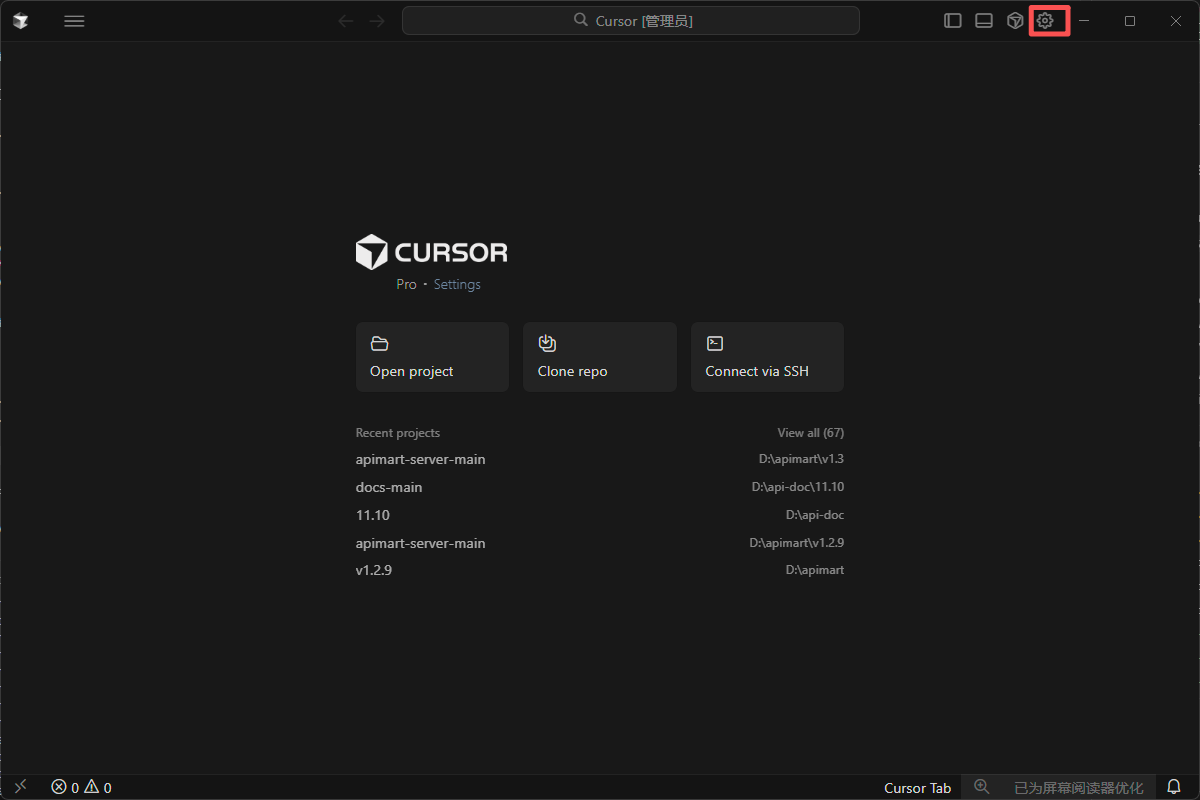 *Cursor main interface — open Settings from the top-right gear*
## Step 2: Configure model settings
### 2.1 Open model settings
In Settings:
1. Find **Models** in the left sidebar
2. Open the model settings page
*Cursor main interface — open Settings from the top-right gear*
## Step 2: Configure model settings
### 2.1 Open model settings
In Settings:
1. Find **Models** in the left sidebar
2. Open the model settings page
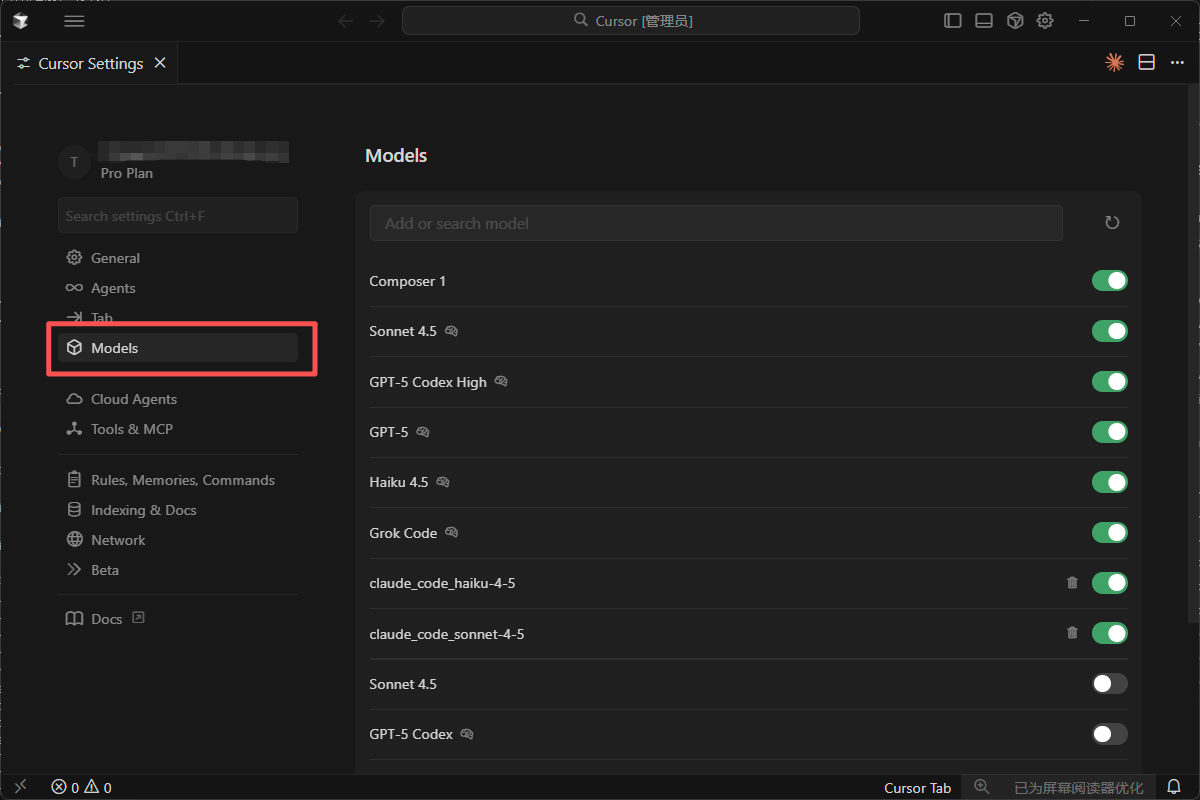 *Find “Models” in the left sidebar*
### 2.2 Use OpenAI API Key
On the model settings page:
1. Find the **OpenAI API Key** section
2. Click **Add new** or **Override OpenAI Base URL**
**Important:** Cursor supports OpenAI-compatible APIs, so APIMart can be configured as a custom provider.
### 2.3 Configure APIMart
Enter the following:
| Setting | Value |
| ------------ | ---------------------------------------- |
| **API Key** | Your APIMart API key (`sk-xxxxxxxxxxxx`) |
| **Base URL** | `https://api.apimart.ai/v1` |
**Important:** - Base URL must include the `/v1` suffix: `https://api.apimart.ai/v1` - The API key must be the `sk-...` key from the APIMart console - After saving, Cursor uses APIMart models for completion and chat
*Find “Models” in the left sidebar*
### 2.2 Use OpenAI API Key
On the model settings page:
1. Find the **OpenAI API Key** section
2. Click **Add new** or **Override OpenAI Base URL**
**Important:** Cursor supports OpenAI-compatible APIs, so APIMart can be configured as a custom provider.
### 2.3 Configure APIMart
Enter the following:
| Setting | Value |
| ------------ | ---------------------------------------- |
| **API Key** | Your APIMart API key (`sk-xxxxxxxxxxxx`) |
| **Base URL** | `https://api.apimart.ai/v1` |
**Important:** - Base URL must include the `/v1` suffix: `https://api.apimart.ai/v1` - The API key must be the `sk-...` key from the APIMart console - After saving, Cursor uses APIMart models for completion and chat
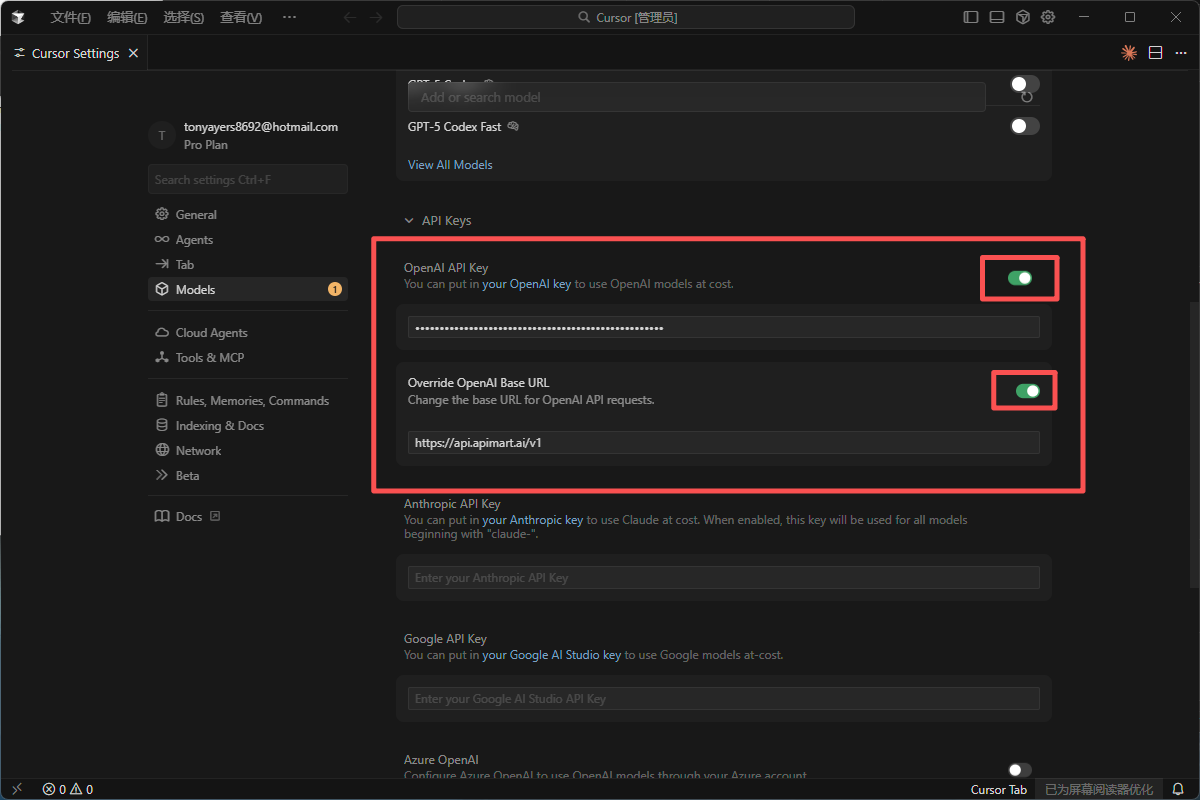 *Enter API Key and Base URL*
## Step 3: Choose models
### 3.1 Model selection
*Enter API Key and Base URL*
## Step 3: Choose models
### 3.1 Model selection
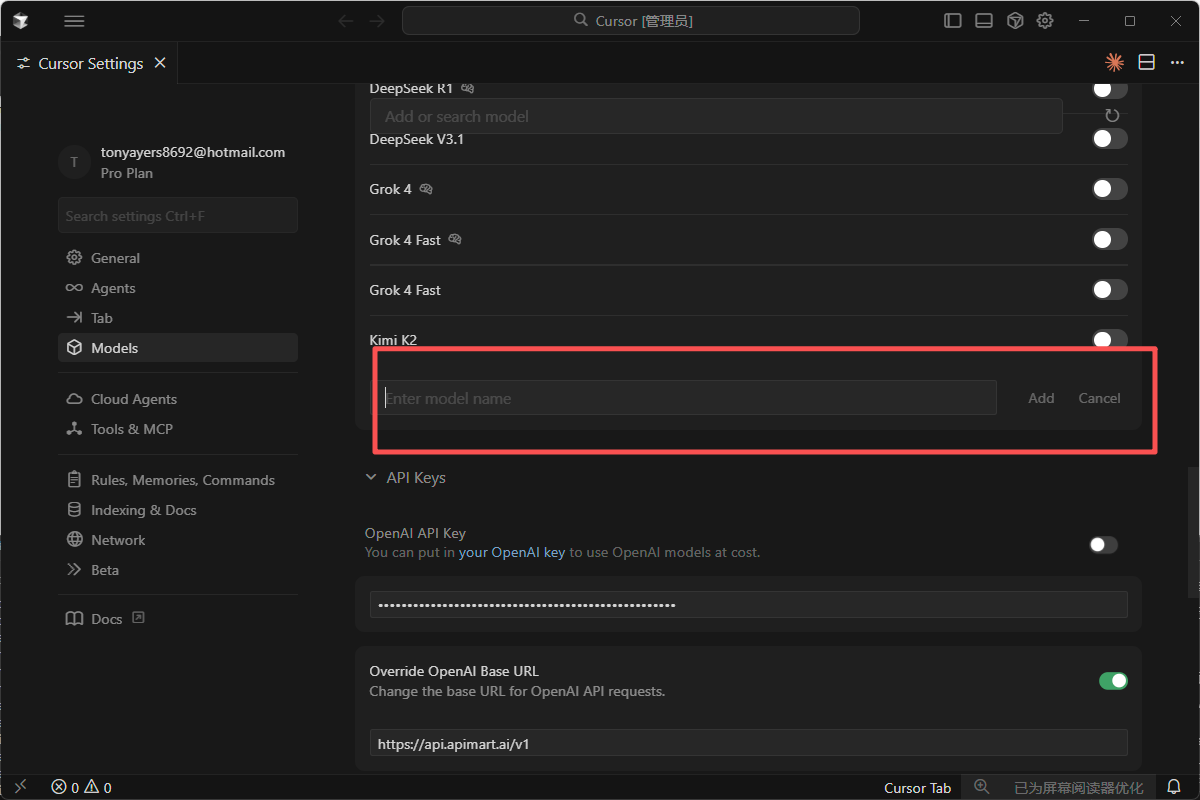 In model settings you can choose which models to use.
**Available families:**
* **GPT-4/5** — strong for complex code generation and Q\&A
* `gpt-5` — latest GPT-5
* `gpt-4o` — GPT-4o
* `gpt-4o-mini` — faster, lower cost
* **Claude** — strong for understanding and refactoring
* `claude-sonnet-4-5-20250929` — Claude Sonnet 4.5
* `claude-haiku-4-5-20251001` — Claude Haiku 4.5
* **Other**
* `gemini-2.0-flash-exp` — Google Gemini 2.0 Flash
**Suggestions:** - 💰 **Completion (cost-efficient):** `gpt-4o-mini` - 🚀 **Hard tasks (performance):** `gpt-5`, `gpt-4o`, `claude-sonnet-4-5-20250929` - ⚡ **Low latency:** `gpt-4o-mini`, `gemini-2.0-flash-exp`
### 3.2 Per-feature models
You can pick different models per feature:
* **Chat** — conversations with the AI
* **Autocomplete** — inline suggestions
* **Cmd+K** — quick edit / generate
Choose the best fit for each workflow.
## Step 4: Start using
Once configured, you can use Cursor’s AI features.
### 4.1 AI Chat (`Cmd+L` / `Ctrl+L`)
1. Press `Cmd+L` (macOS) or `Ctrl+L` (Windows/Linux)
2. Ask a question or give a task, for example:
* “How do I implement quicksort?”
* “Help me optimize this code’s performance”
* “Explain how this function works”
In model settings you can choose which models to use.
**Available families:**
* **GPT-4/5** — strong for complex code generation and Q\&A
* `gpt-5` — latest GPT-5
* `gpt-4o` — GPT-4o
* `gpt-4o-mini` — faster, lower cost
* **Claude** — strong for understanding and refactoring
* `claude-sonnet-4-5-20250929` — Claude Sonnet 4.5
* `claude-haiku-4-5-20251001` — Claude Haiku 4.5
* **Other**
* `gemini-2.0-flash-exp` — Google Gemini 2.0 Flash
**Suggestions:** - 💰 **Completion (cost-efficient):** `gpt-4o-mini` - 🚀 **Hard tasks (performance):** `gpt-5`, `gpt-4o`, `claude-sonnet-4-5-20250929` - ⚡ **Low latency:** `gpt-4o-mini`, `gemini-2.0-flash-exp`
### 3.2 Per-feature models
You can pick different models per feature:
* **Chat** — conversations with the AI
* **Autocomplete** — inline suggestions
* **Cmd+K** — quick edit / generate
Choose the best fit for each workflow.
## Step 4: Start using
Once configured, you can use Cursor’s AI features.
### 4.1 AI Chat (`Cmd+L` / `Ctrl+L`)
1. Press `Cmd+L` (macOS) or `Ctrl+L` (Windows/Linux)
2. Ask a question or give a task, for example:
* “How do I implement quicksort?”
* “Help me optimize this code’s performance”
* “Explain how this function works”
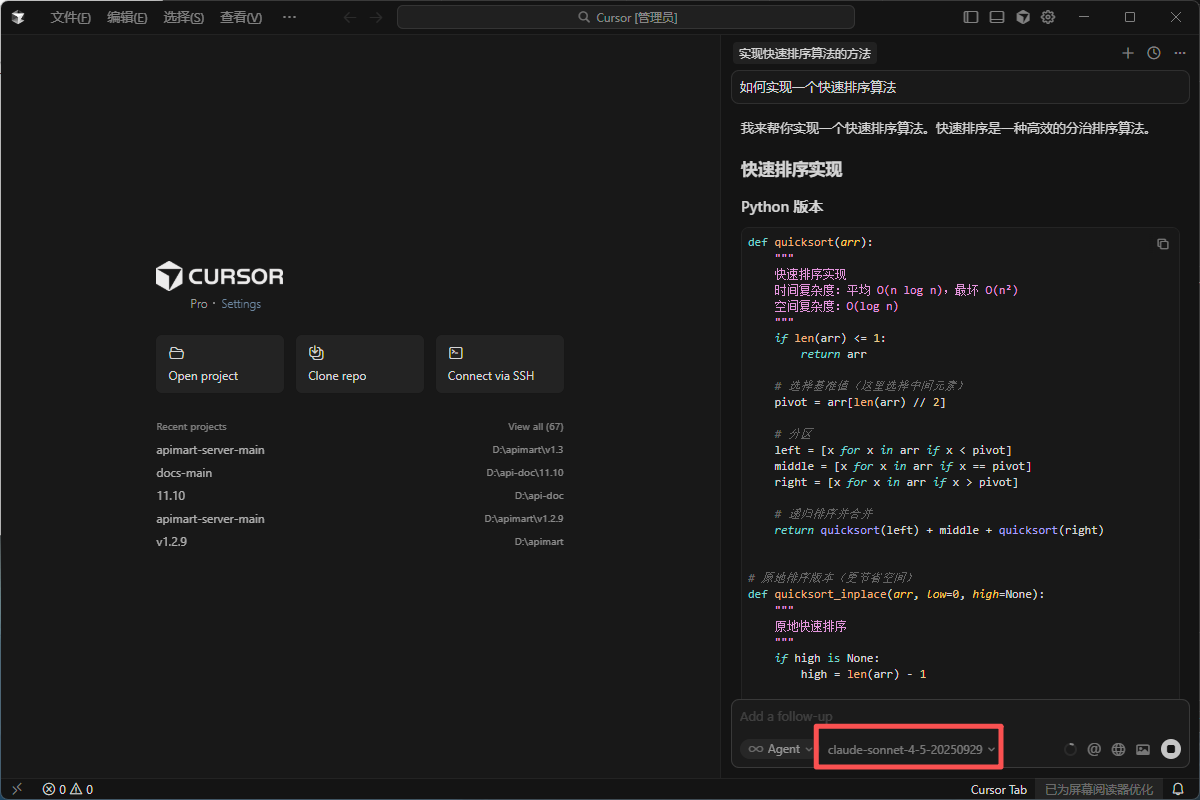 *Chat with the assistant*
### 4.2 Code completion
1. Type as usual in the editor
2. Cursor suggests completions
3. Press `Tab` to accept
*Chat with the assistant*
### 4.2 Code completion
1. Type as usual in the editor
2. Cursor suggests completions
3. Press `Tab` to accept
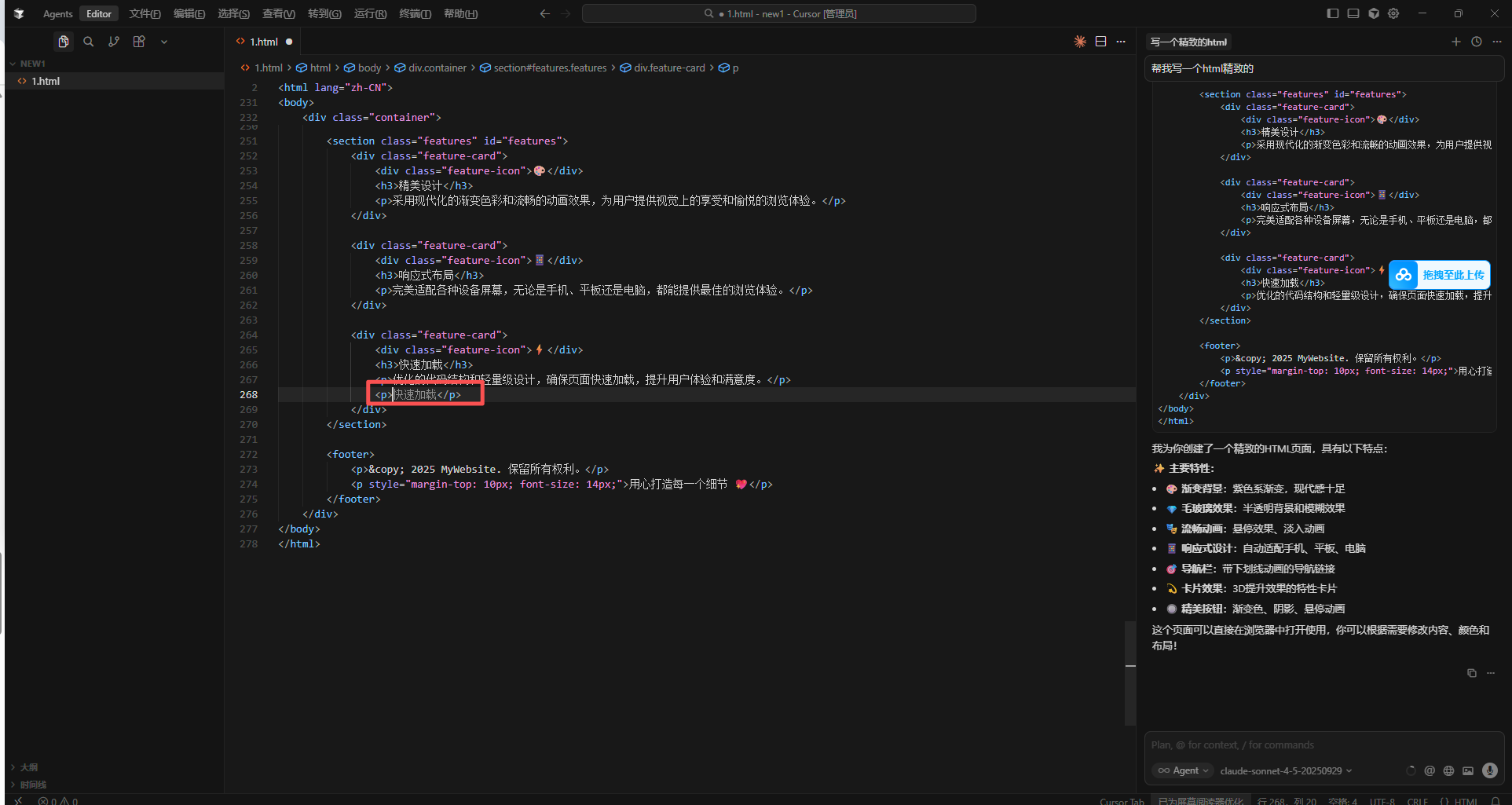 *Inline completion example*
### 4.3 Quick edit (`Cmd+K` / `Ctrl+K`)
1. Select code
2. Press `Cmd+K` (macOS) or `Ctrl+K` (Windows/Linux)
3. Describe the edit, e.g.:
* “Add error handling”
* “Refactor this function”
* “Add type annotations”
*Inline completion example*
### 4.3 Quick edit (`Cmd+K` / `Ctrl+K`)
1. Select code
2. Press `Cmd+K` (macOS) or `Ctrl+K` (Windows/Linux)
3. Describe the edit, e.g.:
* “Add error handling”
* “Refactor this function”
* “Add type annotations”
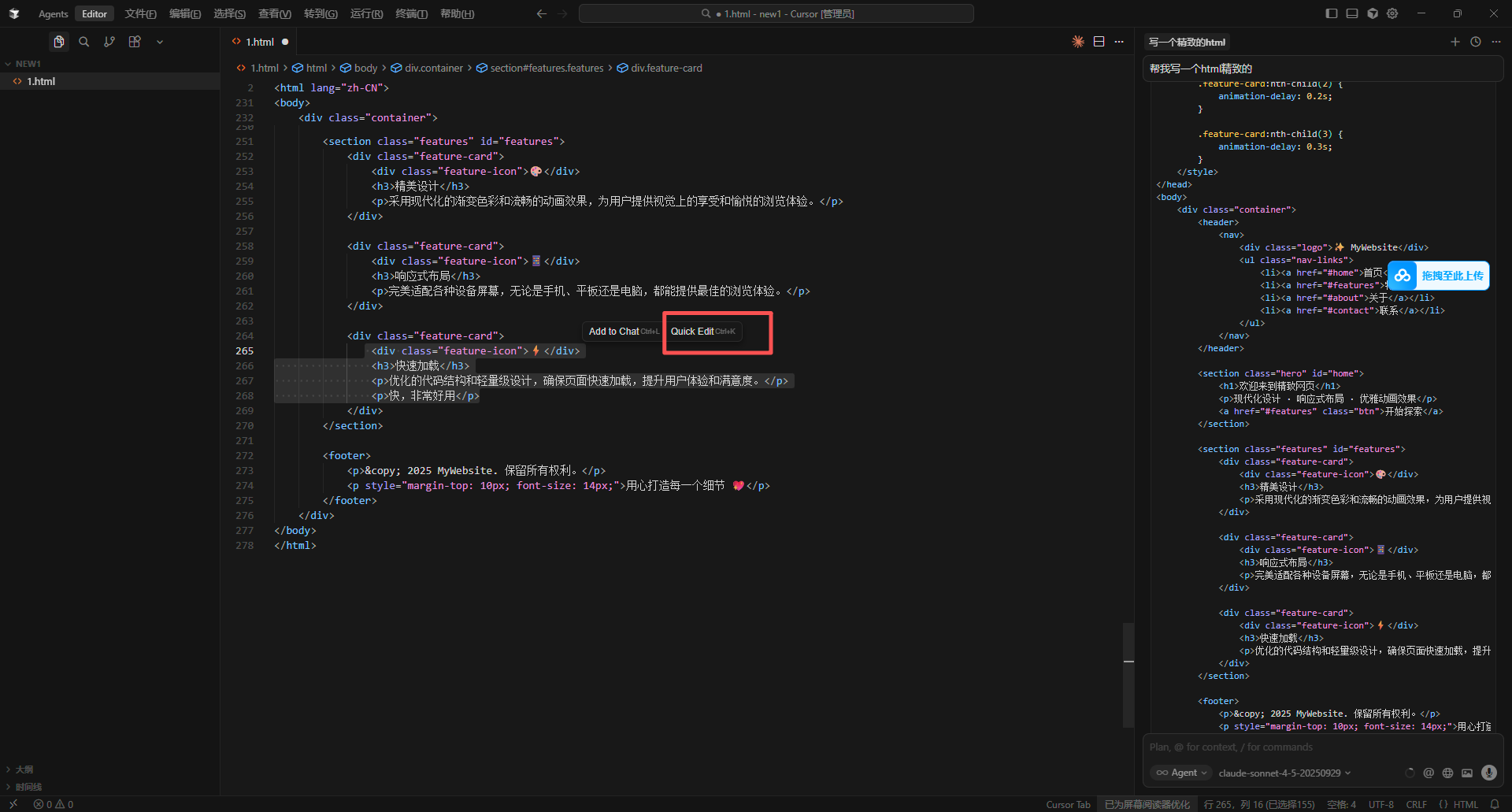 *Quick edit with Cmd+K*
### 4.4 Explain code
1. Select the code
2. Right-click **Explain with AI** (or shortcut)
3. The AI explains behavior and logic
## FAQ
### Q1: Can’t reach APIMart?
**Try:**
1. **Base URL** — must be exactly `https://api.apimart.ai/v1`
2. **API key** — valid `sk-...` key from the [console](https://apimart.ai/keys)
3. **Network** — ensure `https://api.apimart.ai` is reachable; a proxy may be required in some regions
### Q2: Slow responses?
**Try:**
1. Use a lighter model (`gpt-4o-mini` instead of `gpt-4o`, or `gemini-2.0-flash-exp`)
2. Shorten context — send less code, ask more precise questions
3. Check latency / proxy if needed
### Q3: API errors?
| Message | Likely cause | What to do |
| --------------------------- | ---------------------- | ------------------------------- |
| `401 Unauthorized` | Bad or expired key | Re-create key and update Cursor |
| `429 Too Many Requests` | Rate limited | Wait and retry |
| `500 Internal Server Error` | Temporary server issue | Retry later |
| `insufficient_quota` | Low balance | Top up in console |
### Q4: Usage and billing?
Open the [APIMart Console](https://apimart.ai/overview):
* 📊 Call statistics
* 💰 Cost breakdown
* 📈 Usage trends
* 🔍 Request logs
## Tips
### 1. Use context
* Open related files
* Reference files with `@filename`
* Reference folders with `@folder`
### 2. Clear prompts
**❌ Weak:**
```
optimize this
```
**✅ Strong:**
```
Optimize this function for performance:
1. Reduce nested loops
2. Prefer more efficient data structures
3. Add caching where helpful
```
### 3. Iterate
Start small → refine → test → adjust prompts.
### 4. Project rules
Define style, naming, architecture, and tests in `.cursorrules`.
## Features
With Cursor + APIMart:
* 💬 Chat for coding questions
* ⚡ Smart completion
* ✏️ Natural-language edits
* 🔍 Deeper code understanding
* 🐛 Debugging help
* 📝 Docs and comments
* 🔄 Refactoring
* 🧪 Test scaffolding
## Support
* 📚 [APIMart Documentation](https://docs.apimart.ai)
* 💬 [Discord](https://discord.gg/V8zqssyZ5c)
* 🐦 [Twitter @APIMart\_](https://x.com/APIMart_)
* 📧 [zhihong@apimart.ai](mailto:zhihong@apimart.ai)
***
Sign up, get your API key, and ship faster with Cursor!
*Quick edit with Cmd+K*
### 4.4 Explain code
1. Select the code
2. Right-click **Explain with AI** (or shortcut)
3. The AI explains behavior and logic
## FAQ
### Q1: Can’t reach APIMart?
**Try:**
1. **Base URL** — must be exactly `https://api.apimart.ai/v1`
2. **API key** — valid `sk-...` key from the [console](https://apimart.ai/keys)
3. **Network** — ensure `https://api.apimart.ai` is reachable; a proxy may be required in some regions
### Q2: Slow responses?
**Try:**
1. Use a lighter model (`gpt-4o-mini` instead of `gpt-4o`, or `gemini-2.0-flash-exp`)
2. Shorten context — send less code, ask more precise questions
3. Check latency / proxy if needed
### Q3: API errors?
| Message | Likely cause | What to do |
| --------------------------- | ---------------------- | ------------------------------- |
| `401 Unauthorized` | Bad or expired key | Re-create key and update Cursor |
| `429 Too Many Requests` | Rate limited | Wait and retry |
| `500 Internal Server Error` | Temporary server issue | Retry later |
| `insufficient_quota` | Low balance | Top up in console |
### Q4: Usage and billing?
Open the [APIMart Console](https://apimart.ai/overview):
* 📊 Call statistics
* 💰 Cost breakdown
* 📈 Usage trends
* 🔍 Request logs
## Tips
### 1. Use context
* Open related files
* Reference files with `@filename`
* Reference folders with `@folder`
### 2. Clear prompts
**❌ Weak:**
```
optimize this
```
**✅ Strong:**
```
Optimize this function for performance:
1. Reduce nested loops
2. Prefer more efficient data structures
3. Add caching where helpful
```
### 3. Iterate
Start small → refine → test → adjust prompts.
### 4. Project rules
Define style, naming, architecture, and tests in `.cursorrules`.
## Features
With Cursor + APIMart:
* 💬 Chat for coding questions
* ⚡ Smart completion
* ✏️ Natural-language edits
* 🔍 Deeper code understanding
* 🐛 Debugging help
* 📝 Docs and comments
* 🔄 Refactoring
* 🧪 Test scaffolding
## Support
* 📚 [APIMart Documentation](https://docs.apimart.ai)
* 💬 [Discord](https://discord.gg/V8zqssyZ5c)
* 🐦 [Twitter @APIMart\_](https://x.com/APIMart_)
* 📧 [zhihong@apimart.ai](mailto:zhihong@apimart.ai)
***
Sign up, get your API key, and ship faster with Cursor!