> ## Documentation Index
> Fetch the complete documentation index at: https://docs.apimart.ai/llms.txt
> Use this file to discover all available pages before exploring further.
# クイックスタート
> APIサービスを素早く始める
# クイックスタート
APIサービスへようこそ!このガイドでは、画像と動画生成を素早く始める方法を説明します。
## ステップ1:APIキーを取得する
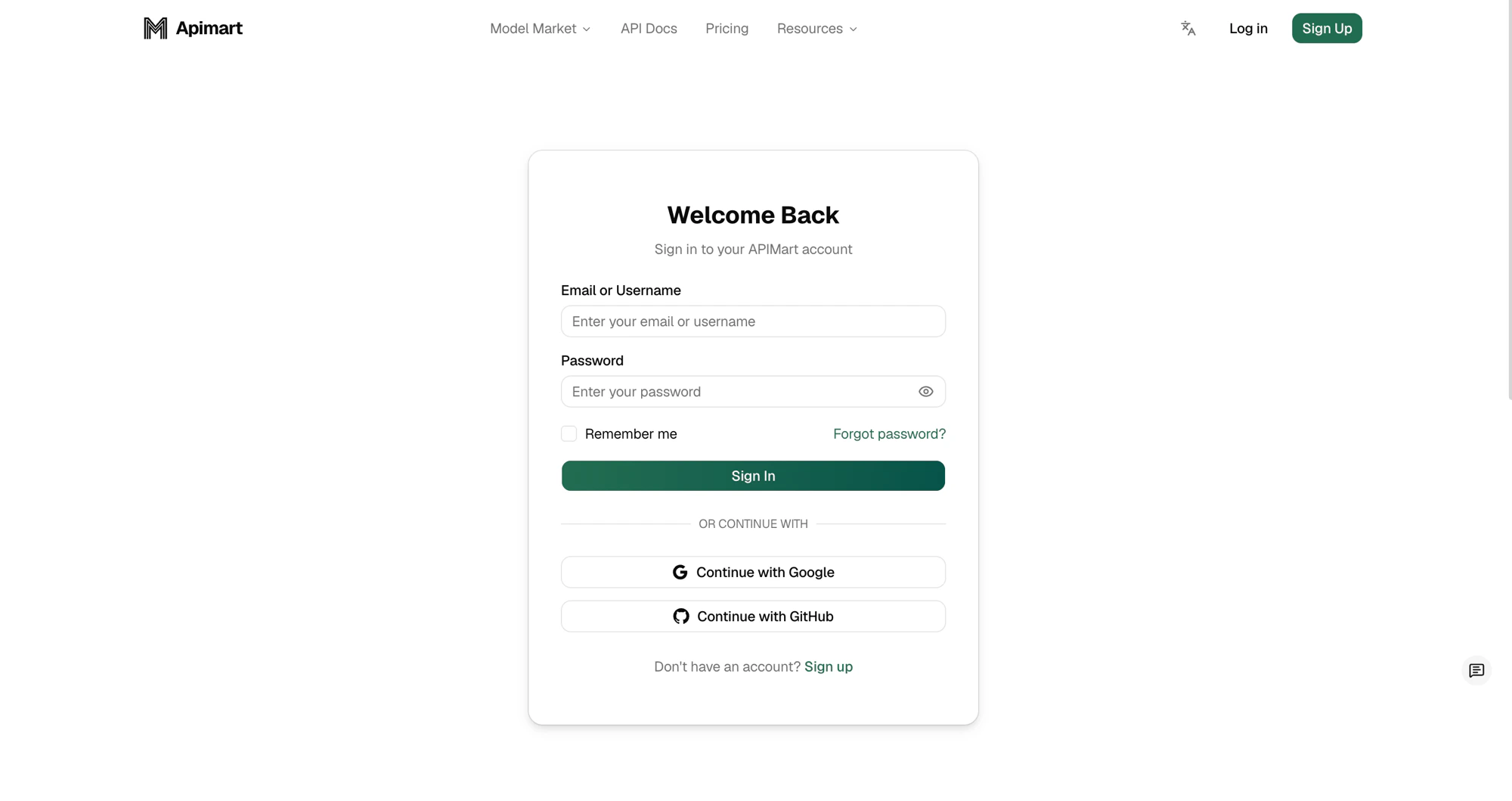
1. [APIキー管理ページ](https://apimart.ai/keys)にアクセス
2. アカウントにサインインする
 3. 新しいAPIキーを作成する
APIキーページで、右上の **Create API Key** ボタンをクリックして作成します。
3. 新しいAPIキーを作成する
APIキーページで、右上の **Create API Key** ボタンをクリックして作成します。
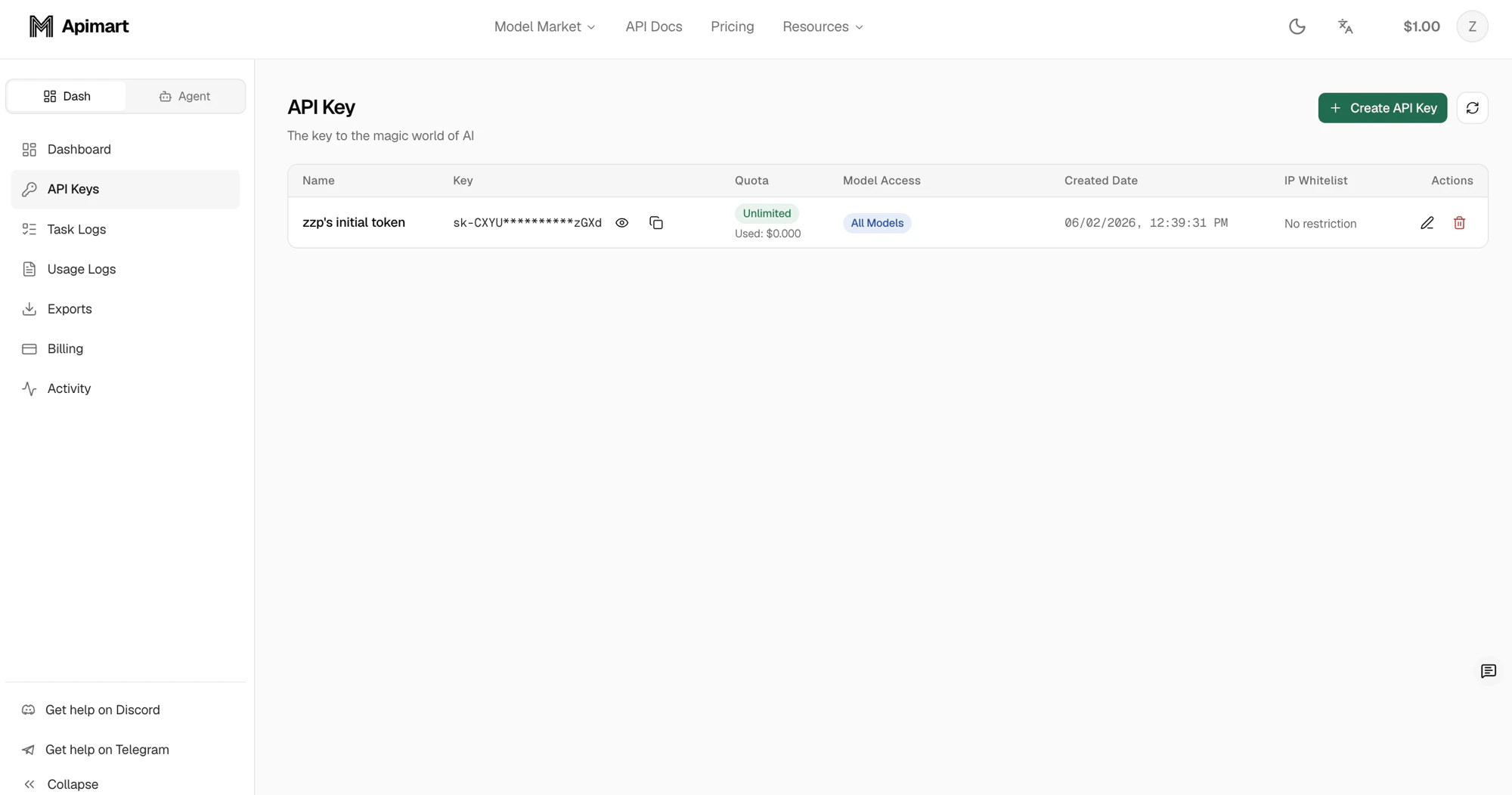 表示されたフォームでキーの **Name** を入力し、必要に応じて割り当て量(Unlimited Quota)、モデル制限(Enable Model Limits)、IP ホワイトリストを設定して、**Create Key** をクリックします。
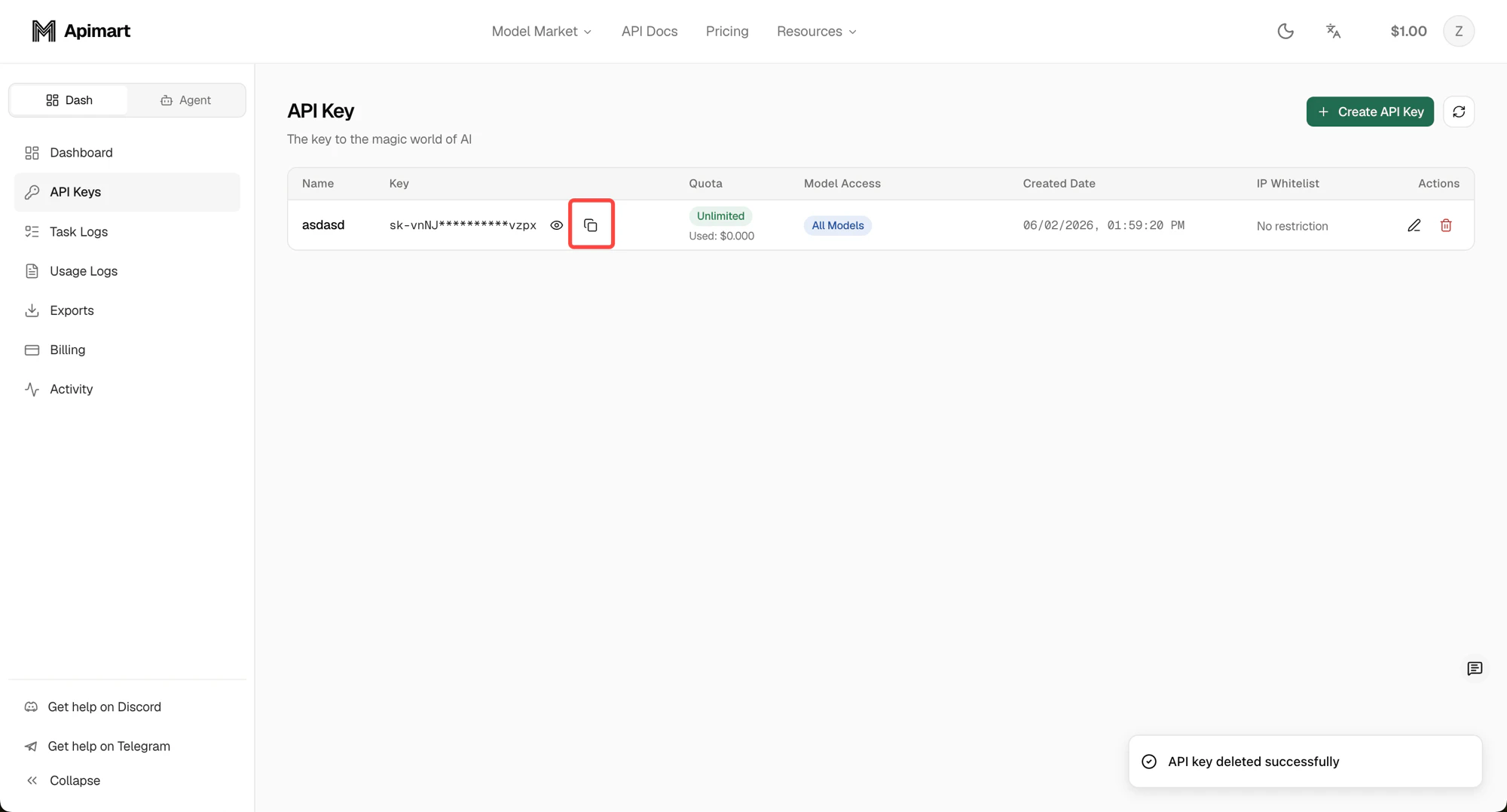
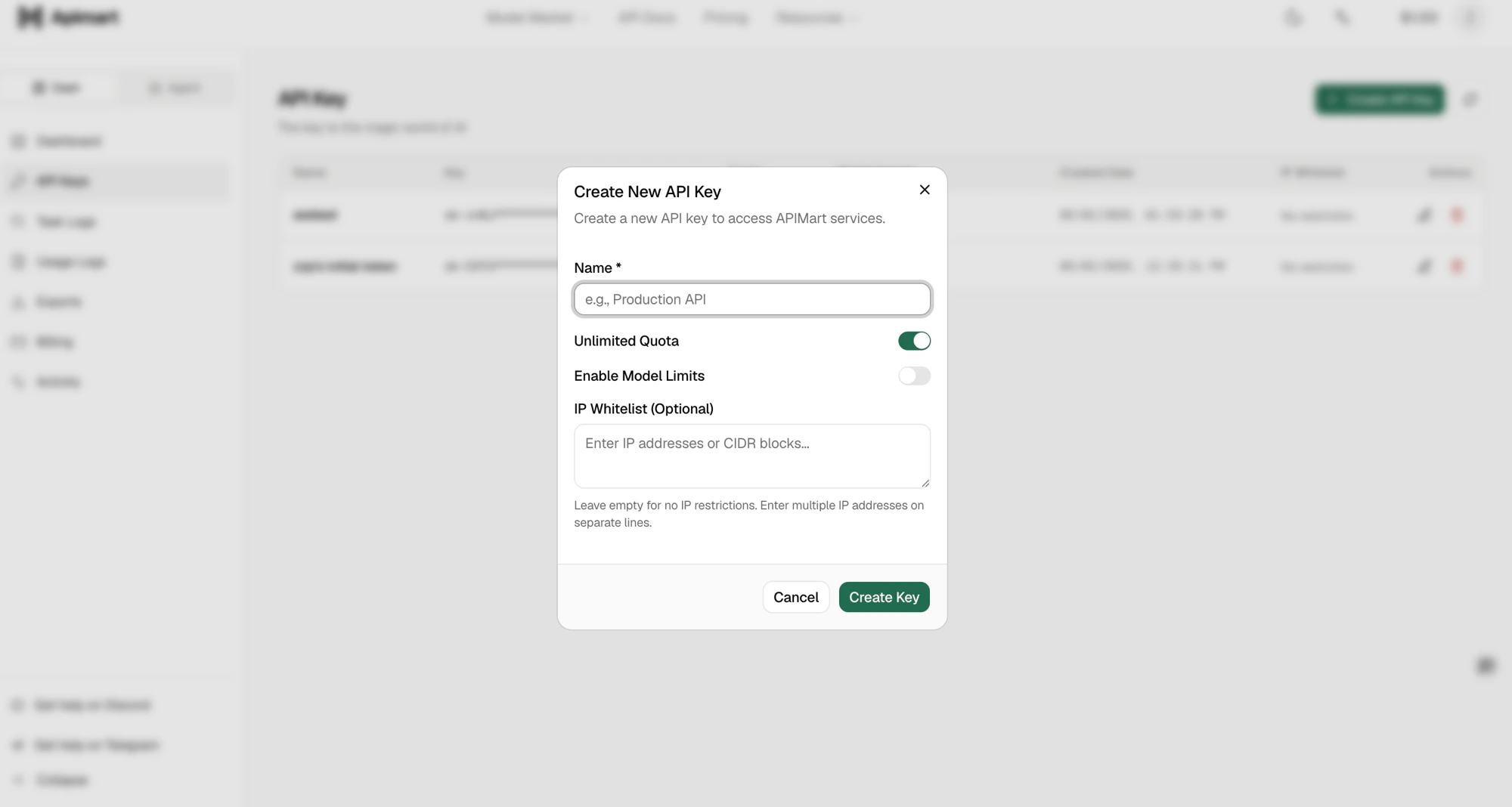 4. キーを安全に保存する
 ## ステップ2:モデルを選択する
複数のAIモデルから選択できます。[モデルマーケット](https://apimart.ai/ja/model) にアクセスして、利用可能なすべてのモデルと料金を確認できます。
### テキスト生成モデル
* **GPT-4o**: 強力な対話とテキスト生成機能
* **Claude**: Anthropicの高性能な対話モデル
* **Gemini**: Googleのマルチモーダル大規模言語モデル
### 画像生成モデル
* **GPT-4o-image**: 高品質な画像生成
### 動画生成モデル
* **Sora2**: プロフェッショナルな動画生成
## ステップ3:リクエストを送信する
### テキスト生成の例
```bash theme={null}
curl -X POST https://api.apimart.ai/v1/chat/completions \
-H "Authorization: Bearer YOUR_API_KEY" \
-H "Content-Type: application/json" \
-d '{
"model": "gpt-4o",
"messages": [
{
"role": "user",
"content": "こんにちは、自己紹介をしてください"
}
]
}'
```
### 画像生成の例
```bash theme={null}
curl -X POST https://api.apimart.ai/v1/images/generations \
-H "Authorization: Bearer YOUR_API_KEY" \
-H "Content-Type: application/json" \
-d '{
"model": "gpt-4o-image",
"prompt": "A cute panda",
"size": "1:1",
"n": 1
}'
```
### 動画生成の例
```bash theme={null}
curl -X POST https://api.apimart.ai/v1/videos/generations \
-H "Authorization: Bearer YOUR_API_KEY" \
-H "Content-Type: application/json" \
-d '{
"model": "sora-2",
"prompt": "Waves crashing against the shore",
"duration": 15,
"aspect_ratio": "16:9"
}'
```
## ステップ4:タスクのステータスを確認する
非同期処理を使用しているため、タスクのステータスを照会して結果を取得する必要があります。
```bash theme={null}
curl -X GET https://api.apimart.ai/v1/tasks/YOUR_TASK_ID \
-H "Authorization: Bearer YOUR_API_KEY"
```
## 次のステップ
利用可能なすべてのAPIエンドポイントについて詳しく学ぶ。
アプリケーションにAPIを統合する方法を学ぶ。
## ステップ2:モデルを選択する
複数のAIモデルから選択できます。[モデルマーケット](https://apimart.ai/ja/model) にアクセスして、利用可能なすべてのモデルと料金を確認できます。
### テキスト生成モデル
* **GPT-4o**: 強力な対話とテキスト生成機能
* **Claude**: Anthropicの高性能な対話モデル
* **Gemini**: Googleのマルチモーダル大規模言語モデル
### 画像生成モデル
* **GPT-4o-image**: 高品質な画像生成
### 動画生成モデル
* **Sora2**: プロフェッショナルな動画生成
## ステップ3:リクエストを送信する
### テキスト生成の例
```bash theme={null}
curl -X POST https://api.apimart.ai/v1/chat/completions \
-H "Authorization: Bearer YOUR_API_KEY" \
-H "Content-Type: application/json" \
-d '{
"model": "gpt-4o",
"messages": [
{
"role": "user",
"content": "こんにちは、自己紹介をしてください"
}
]
}'
```
### 画像生成の例
```bash theme={null}
curl -X POST https://api.apimart.ai/v1/images/generations \
-H "Authorization: Bearer YOUR_API_KEY" \
-H "Content-Type: application/json" \
-d '{
"model": "gpt-4o-image",
"prompt": "A cute panda",
"size": "1:1",
"n": 1
}'
```
### 動画生成の例
```bash theme={null}
curl -X POST https://api.apimart.ai/v1/videos/generations \
-H "Authorization: Bearer YOUR_API_KEY" \
-H "Content-Type: application/json" \
-d '{
"model": "sora-2",
"prompt": "Waves crashing against the shore",
"duration": 15,
"aspect_ratio": "16:9"
}'
```
## ステップ4:タスクのステータスを確認する
非同期処理を使用しているため、タスクのステータスを照会して結果を取得する必要があります。
```bash theme={null}
curl -X GET https://api.apimart.ai/v1/tasks/YOUR_TASK_ID \
-H "Authorization: Bearer YOUR_API_KEY"
```
## 次のステップ
利用可能なすべてのAPIエンドポイントについて詳しく学ぶ。
アプリケーションにAPIを統合する方法を学ぶ。