Introduction
CC-Switch is an open-source desktop application that unifies the management of API provider configurations across multiple AI coding CLI tools such as Claude Code, Codex, and Gemini CLI. It turns tedious configuration file editing into just a few clicks in a GUI — once a provider is added, you can switch between API services instantly, with no need to edit configuration files by hand. By connecting APIMart through CC-Switch, you can easily configure the APIMart service for Claude Code and Codex, and switch freely between multiple providers.Prerequisites
Before you begin, make sure you have:- Installed a supported CLI tool At least one supported CLI tool installed, such as Claude Code or Codex CLI
-
Obtained an APIMart API Key
Log in to the APIMart Console to get your API key (starts with
sk-)
Tip: If you don’t have an APIMart account yet, please register at APIMart first and obtain your API key.
Step 1: Install CC-Switch
Choose the installation method based on your operating system:- macOS
- Windows
- Linux
Install via Homebrew (recommended):You can also download the
.dmg installer from GitHub Releases. CC-Switch is signed and notarized by Apple, so it can be installed directly (requires macOS 12 or later).When CC-Switch is launched for the first time, it automatically detects CLI tools installed on your machine and can import existing configurations as the default providers.
Step 2: Add the APIMart Provider
At the top of the CC-Switch main window you can switch between different CLI tool groups. Refer to the steps below based on the tool you want to configure.- Configure for Claude Code
- Configure for Codex
1. Switch to the Claude Code groupSelect Claude Code at the top of the main window.2. Open the Add Provider panelClick the + button at the top-right corner of the main window.3. Fill in the provider detailsFill out the form as follows: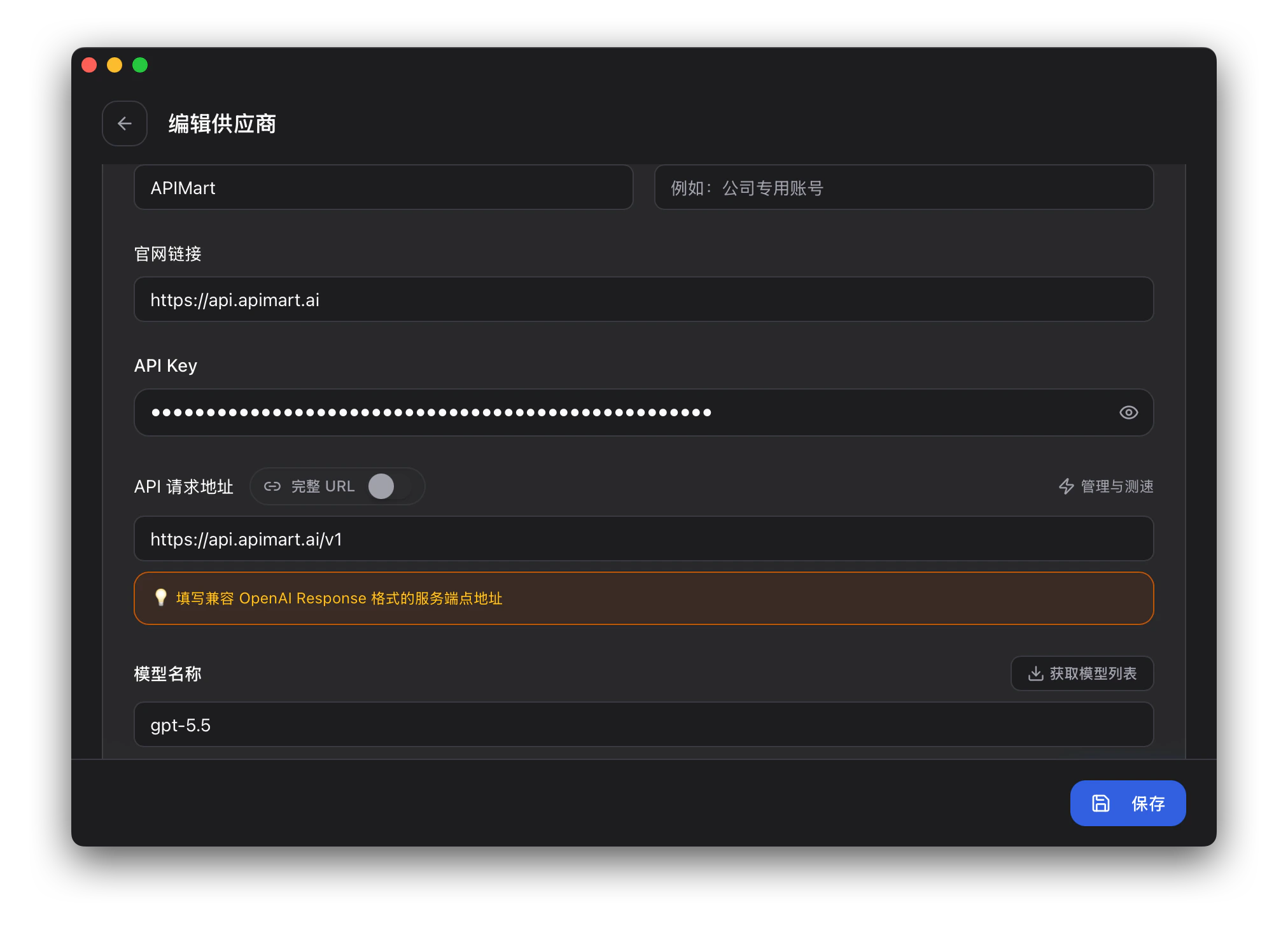
About the endpoint URL: Claude Code uses the Anthropic-native format with the URL
https://api.apimart.ai (no /v1); Codex uses the OpenAI-compatible format with the URL https://api.apimart.ai/v1 (with
/v1). Do not mix them up.Step 3: Switch Providers
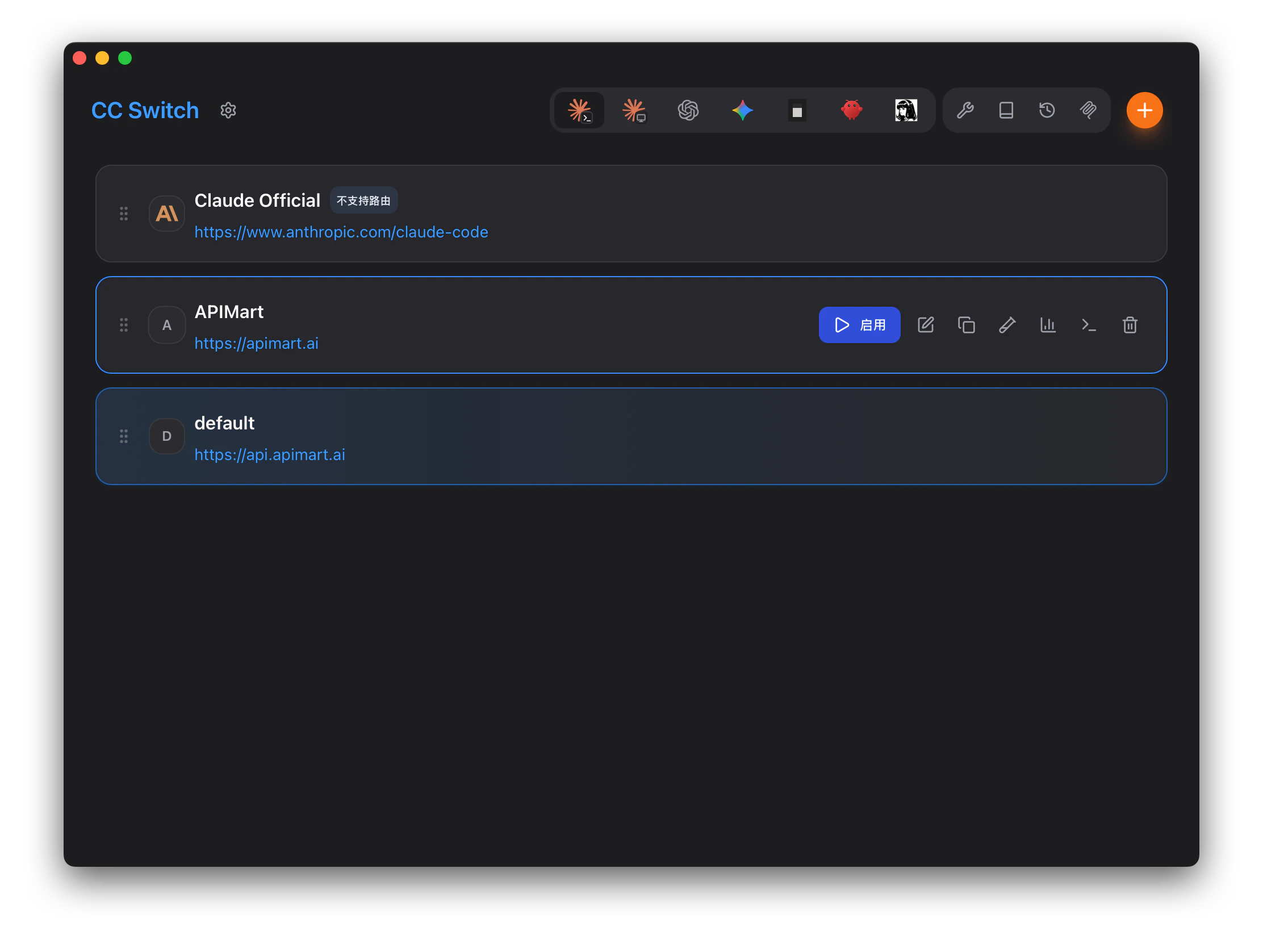
Once added, you can switch between APIMart and other providers at any time:Switch in the main window
- Select APIMart in the provider list
- Click the Enable (or Use) button
- A “Switched successfully” toast confirms the change
Switch from the system tray
CC-Switch stays in the system tray, so you can switch without opening the main window:- Click the CC-Switch icon in the system tray
- Click the target provider name in the menu — it takes effect immediately
About activation: Claude Code supports hot switching — new sessions pick up the new configuration automatically. After switching for Codex, you need to restart the terminal or Codex for the change to take effect.
Supported Models
After switching to the APIMart provider, you can use a variety of models in the corresponding CLI tool:FAQ
Q1: Switching providers doesn’t take effect?
- Claude Code: Supports hot switching — start a new session; if it still doesn’t work, restart Claude Code
- Codex: After switching, restart the terminal or Codex
Q2: API key reported as invalid?
- Make sure the API key starts with
sk-and is copied in full with no extra whitespace - Go to the APIMart Console to confirm the key is active
- Check that the endpoint URL is correct (Claude Code uses
https://api.apimart.ai, Codex useshttps://api.apimart.ai/v1)
Q3: Format error when adding a Codex provider?
CC-Switch validatesauth.json (JSON syntax) and config.toml (TOML syntax). Check that:
- Brackets, quotes, and commas in the JSON are complete
- No full-width / smart quotes are used
- Field names in the TOML are spelled correctly
Q4: Which files does CC-Switch modify?
CC-Switch writes to the configuration files of each tool:- Claude Code:
~/.claude/settings.json - Codex:
~/.codex/config.tomland~/.codex/auth.json
Q5: How do I view API usage and billing?
Log in to the APIMart Console to view API call statistics, token consumption details, and cost trends.Support and Help
If you run into any issues while using CC-Switch:- 📚 APIMart Documentation Center
- 📚 CC-Switch Project Page
- 💬 Discord Community
- 🐦 Twitter @APIMart_
- 📧 Technical support: zhihong@apimart.ai
Get Started with APIMart
Sign up for APIMart now, grab your API key, and manage multiple AI coding tools effortlessly in CC-Switch!