Introduction
Cline (formerly Claude Dev) is a powerful VSCode extension that allows developers to interact with AI assistants directly in the editor, performing tasks such as code writing, debugging, and refactoring. By configuring the APIMart API, you can use various advanced AI models in Cline.Prerequisites
Before you begin, please ensure:-
Visual Studio Code is installed
Download and install VSCode from the official website -
Cline extension is installed
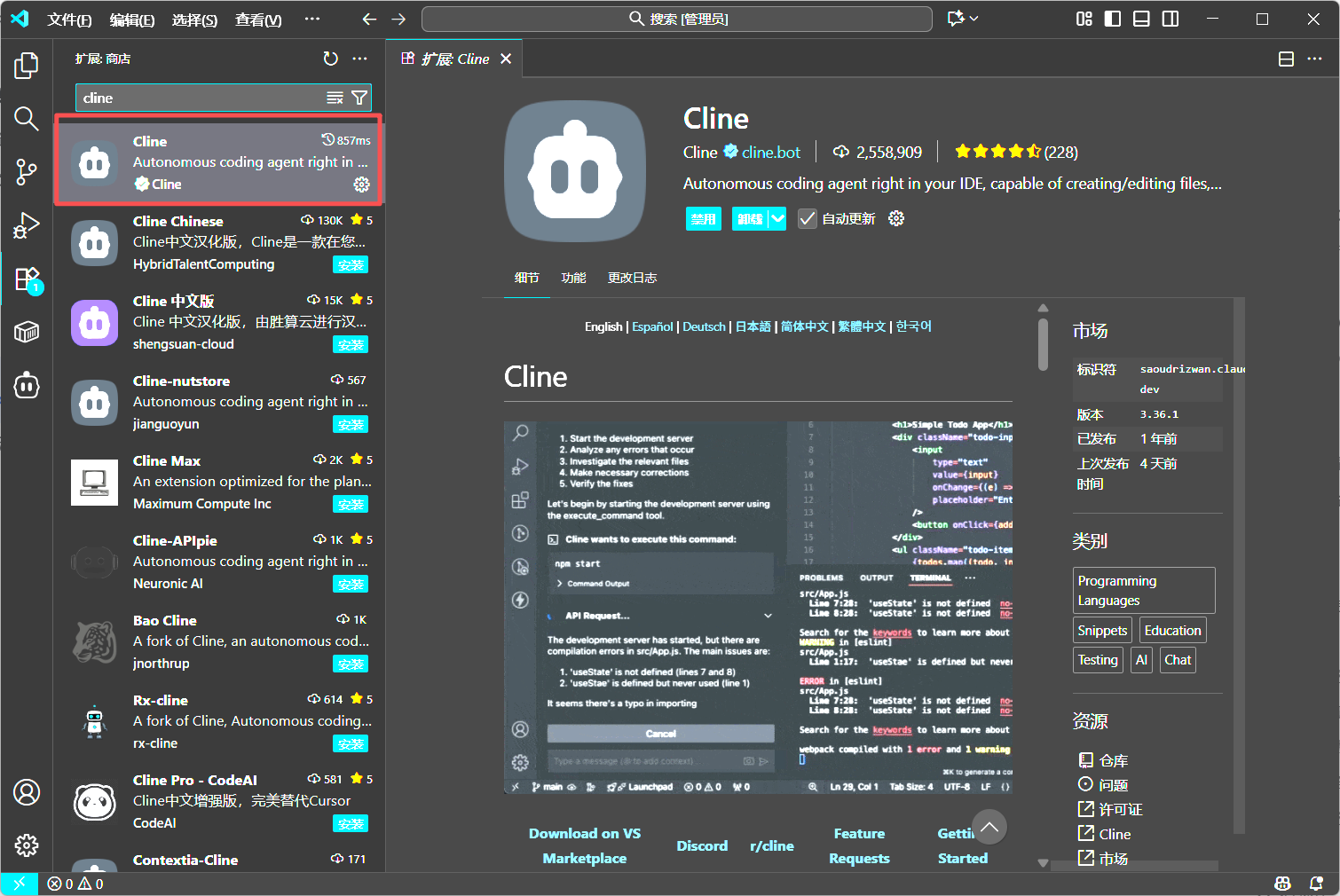
Search for “Cline” in the VSCode extension marketplace and install it -
APIMart API key obtained
Log in to the APIMart Console to get your API key (starts withsk-)
Tip: If you don’t have an APIMart account yet, please register at APIMart first and obtain an API key.
Step 1: Install Cline Extension
1.1 Open Extension Marketplace
In VSCode:- Click the Extensions icon in the left activity bar (or press
Ctrl+Shift+X/Cmd+Shift+X) - Type Cline in the search box
- Find the Cline extension (by Cline)
- Click the Install button
1.2 Verify Installation
After installation:- The Cline icon (robot head) will appear in the left activity bar
- Click the icon to open the Cline sidebar
- On first open, you’ll see the welcome message “Hi, I’m Cline”
- Two options are displayed:
- Get Started for Free - Use the official free trial
- Use your own API key - Use your own API key
Step 2: Configure APIMart API
2.1 Choose to Use Your Own API Key
On the Cline welcome screen:- Click the Use your own API key button
- This will open the API configuration interface
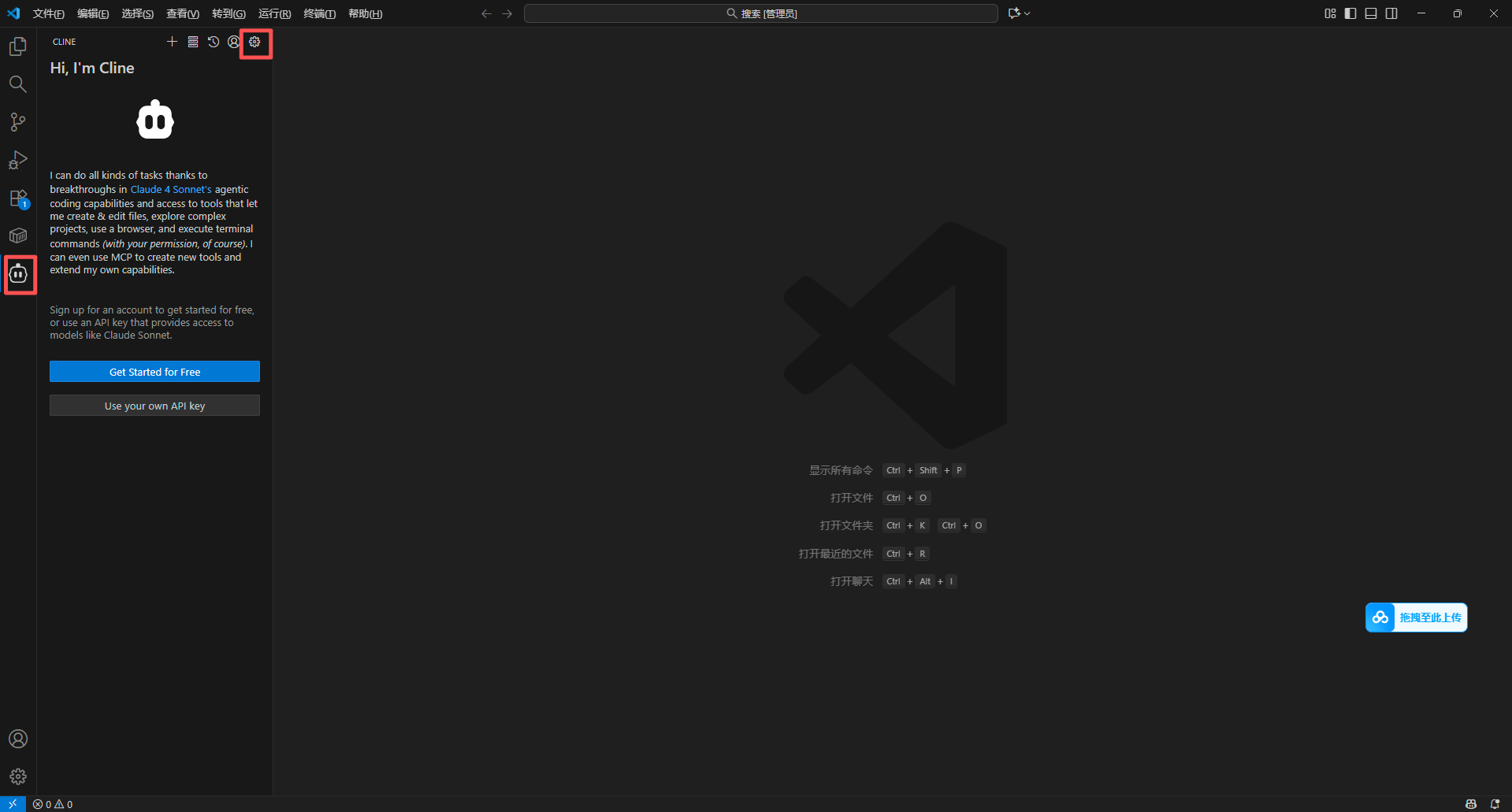
Tip: If you’ve configured before, you can click the Settings (gear icon) at the top of the Cline sidebar to access configuration.
2.2 Configure API Provider
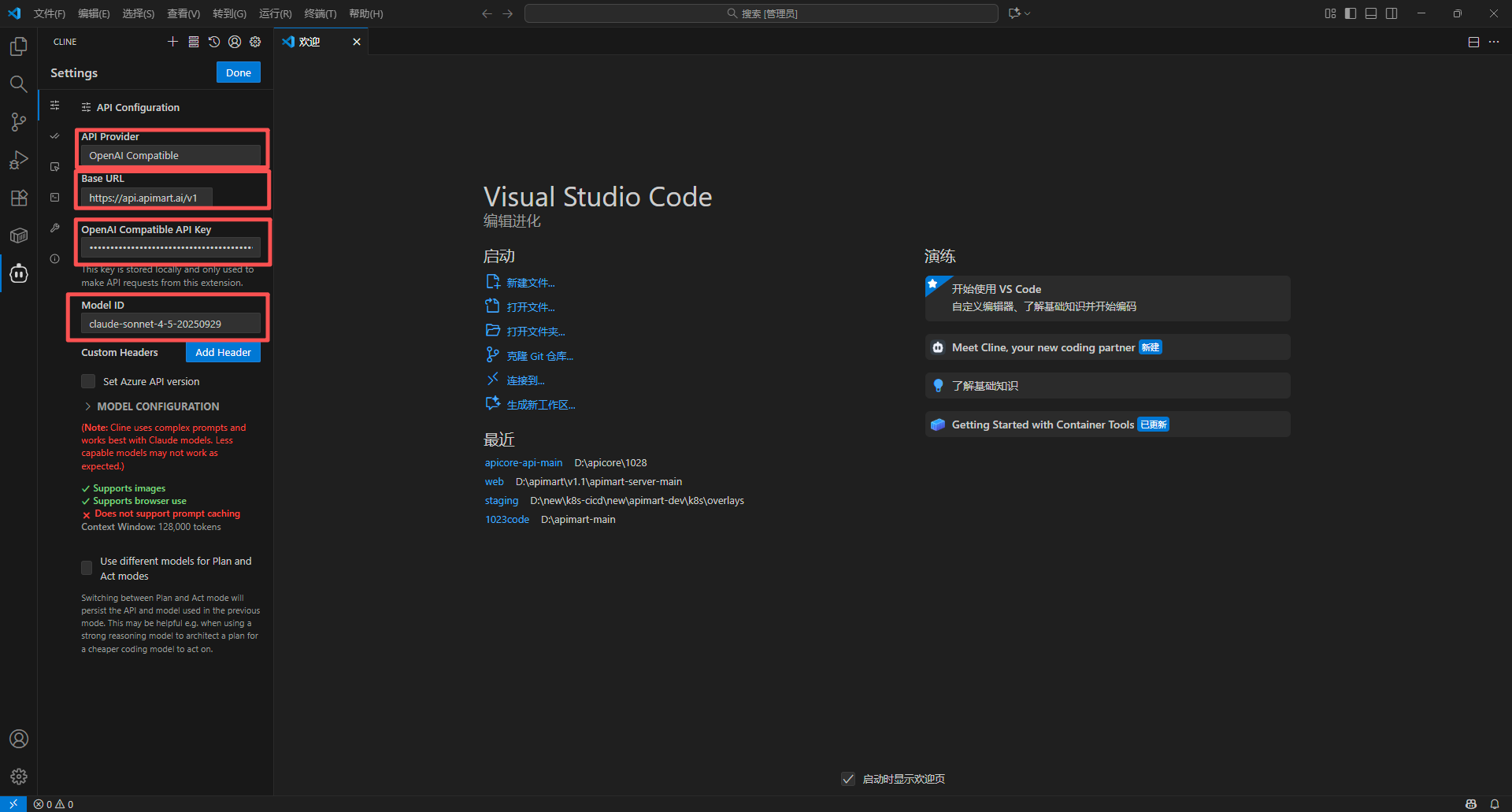
In the Settings interface:- Expand the API Configuration section
- Select OpenAI Compatible from the API Provider dropdown
- This will display OpenAI compatible configuration options
Important: APIMart is fully compatible with the OpenAI API format, so selecting “OpenAI Compatible” is appropriate.
2.3 Fill in API Configuration
Fill in the following configuration information:| Setting | Value | Description |
|---|---|---|
| API Provider | OpenAI Compatible | Select from dropdown |
| Base URL | https://api.apimart.ai/v1 | APIMart API base URL |
| OpenAI Compatible API Key | sk-xxxxxxxxxxxx | Your APIMart API key |
| Model ID | gpt-5 or claude-sonnet-4-5-20250929 | Enter the model ID to use |
Configuration Notes:
- API Key: Must be the key starting with
sk-obtained from APIMart Console - Base URL: Fixed as
https://api.apimart.ai/v1, note the/v1suffix - Model ID: Enter the model ID directly, such as
gpt-5,gpt-4o,claude-sonnet-4-5-20250929, etc. - The configuration interface will display the model’s capabilities below (e.g., image support, browser usage)
2.4 Save Configuration
After configuration:- Click the Done button in the top right corner
- Configuration is saved automatically
- Cline will immediately connect to APIMart using the new configuration
- Return to the Cline main interface, showing “What can I do for you?”
Step 3: Choose the Right Model
Recommended Models
Choose the appropriate model based on different development scenarios: Text Generation & Code Development:- gpt-5 ⭐ Latest model, highest code generation quality
- Suitable for: Complex algorithms, architecture design, code refactoring
- Features: Strong comprehension, high code quality
- gpt-4o High-performance model
- Suitable for: Daily development, code review, bug fixing
- Features: Fast, stable quality
- gpt-4o-mini 💰 Cost-effective
- Suitable for: Simple code generation, comment writing, documentation
- Features: Great value, quick response
- claude-sonnet-4-5-20250929
- Suitable for: Complex logical reasoning, algorithm optimization
- Features: Excellent reasoning, great for complex problems
- claude-haiku-4-5-20251001
- Suitable for: Quick code completion, simple Q&A
- Features: Extremely fast, low cost
Switching Models
At the bottom of the Cline main interface:- Find the model button below the input box (shows current model, e.g.,
openai-compatible:clau...) - Click this button to switch models
- Or modify the Model ID field in settings
- Changes take effect immediately, no VSCode restart needed
Tip: The current model is shown on the button below the input box; click to quickly switch.
Step 4: Start Using Cline
4.1 Basic Conversation
After configuration, chat with the AI assistant:- The Cline main interface will show “What can I do for you?”
- Enter your request in the input box at the bottom (shows “Type your task here…”)
- For example: “Create a function to calculate the Fibonacci sequence”
- Press
Enterto send - AI will analyze your request, generate code, and can apply it directly to your project
- Each step’s progress is displayed in the sidebar
4.2 Code Generation
Let AI generate code: Example 1: Create a function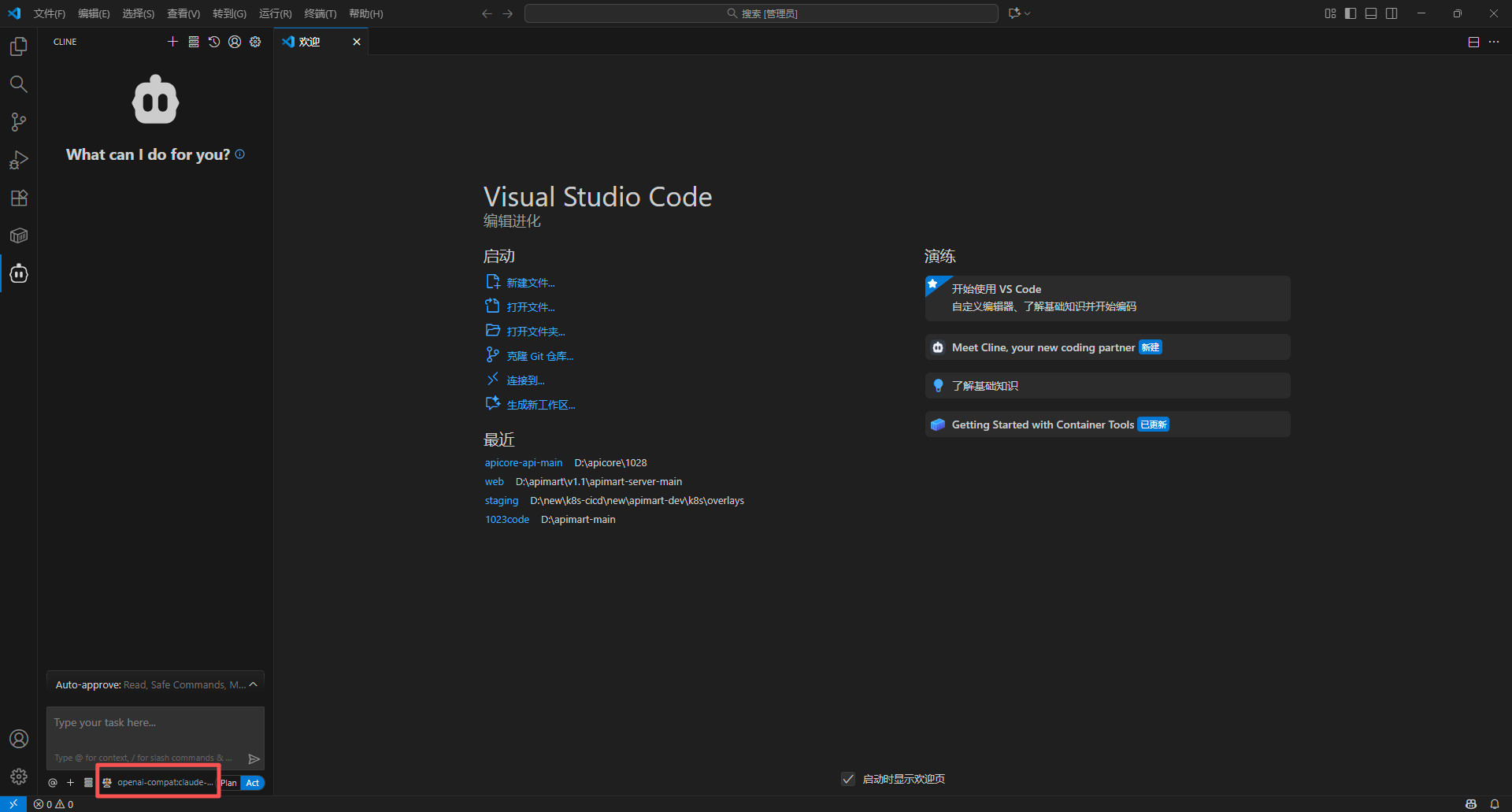
4.3 Code Explanation and Improvement
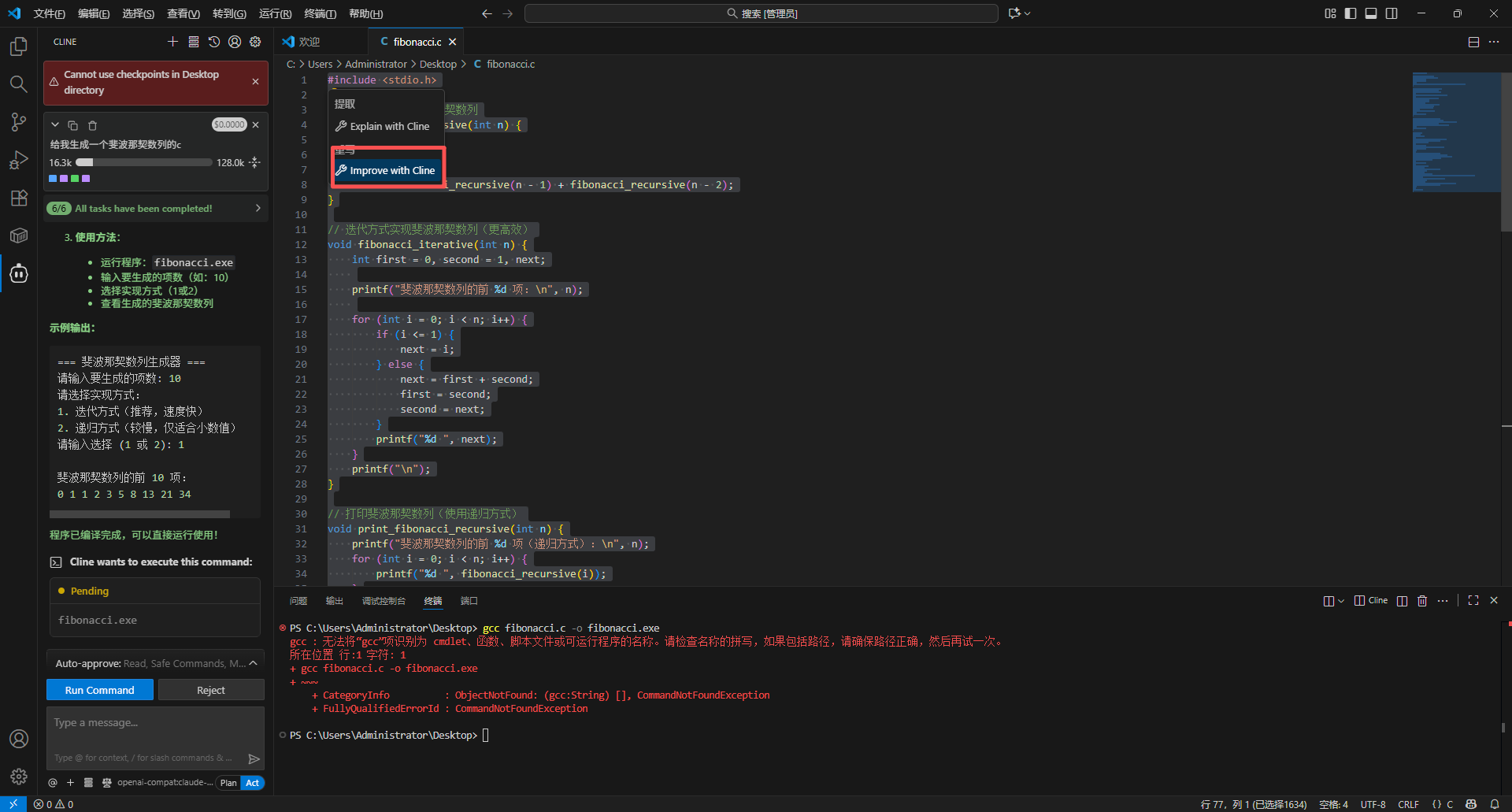
Analyze and optimize existing code: Right-click menu shortcuts:- Select the code you want to process in the editor
- Right-click to see Cline options:
- Explain with Cline - Explain the code’s functionality and logic
- Improve with Cline - Optimize and improve the code
- Select the corresponding action
- Cline will display analysis results and improvement suggestions in the sidebar
4.4 Bug Debugging
Find and fix errors:- Send error messages or problematic code to Cline
- For example: “This code throws an error: TypeError: Cannot read property ‘name’ of undefined”
- AI will analyze the problem and provide solutions
- You can apply the fix directly
4.5 Code Explanation
Understand complex code:- Select a difficult-to-understand code snippet
- Type in Cline: “Explain what this code does”
- AI will provide a detailed explanation and how it works
4.6 Documentation Generation
Automatically generate code documentation: Generate function comments:Advanced Features
Multi-file Operations
Cline can handle multiple files simultaneously:-
Create multiple files:
-
Batch modifications:
-
Project refactoring:
Terminal Command Execution
Cline can help execute terminal commands:-
Install dependencies:
-
Run scripts:
-
Git operations:
- Cline will display “Cline wants to execute this command:” in the sidebar
- Shows the specific command (e.g.,
gcc fibonacci.c -o fibonacci.exe) - Two buttons appear at the bottom:
- Run Command - Execute the command
- Reject - Refuse to execute
- After clicking “Run Command”, the command runs in the integrated terminal
- Results are displayed in both the terminal and Cline sidebar
Context Management
Cline automatically manages conversation context:- Current file context: Automatically includes the file being edited
- Selected code context: Automatically includes code snippets you select
- Project structure context: Understands your project structure
- Error message context: Automatically captures terminal error messages
Custom Prompts
Create custom prompt templates:- Find Custom Instructions in Cline settings
- Add your preferences, for example:
- AI will follow these instructions in all interactions
FAQ
Q1: Cline says API key is invalid?
Solutions:-
Check API Key format:
- Confirm the API Key starts with
sk- - Ensure it’s copied completely without extra spaces
- Confirm the API Key starts with
-
Check Base URL:
- Must be
https://api.apimart.ai/v1 - Note the
/v1suffix
- Must be
-
Verify key validity:
- Check key status at APIMart Console
- Confirm sufficient account balance
-
Reconfigure:
- Delete existing configuration
- Re-enter API Key and Base URL
Q2: Cline responds slowly?
Solutions:-
Switch to a faster model:
- Use
gpt-4o-miniorclaude-haiku-4-5-20251001 - These models respond faster
- Use
-
Reduce context length:
- Avoid sending very long code at once
- Break large tasks into smaller ones
-
Check network connection:
- Ensure stable network
- Consider using a proxy server
-
Optimize request content:
- Ask more specific questions
- Avoid vague or overly broad questions
Q3: Cline generates low-quality code?
Solutions:-
Use higher-quality models:
- Switch to
gpt-5orclaude-sonnet-4-5-20250929 - These models produce higher quality code
- Switch to
-
Provide more detailed requirements:
- Clearly state expected implementation
- Provide example code or references
- Specify tech stack and framework versions
-
Use custom instructions:
- Add code standards in settings
- Specify coding style and best practices
-
Iterative optimization:
- Have multiple conversation rounds with AI
- Gradually improve code quality
Q4: How to manage API usage costs?
Solutions:-
Choose appropriate models:
- Use
gpt-4o-minifor daily development - Use
gpt-5for complex tasks
- Use
-
Optimize question approach:
- Be as specific as possible
- Avoid repeating the same questions
-
Use code selection:
- Only select the code portion that needs processing
- Avoid sending entire file context
-
Monitor usage:
- Regularly check the APIMart Console
- Understand API call frequency and costs
Q5: Cline can’t access certain files?
Solutions:-
Check file permissions:
- Ensure files have read/write permissions
- Especially on Linux/macOS systems
-
Check .gitignore:
- Cline ignores files in .gitignore by default
- You can adjust this behavior in settings
-
Workspace settings:
- Ensure files are within the VSCode workspace
- Check workspace trust settings
-
Reload VSCode:
- Use
Ctrl+Shift+P/Cmd+Shift+P - Run the “Reload Window” command
- Use
Usage Tips
1. Leverage Context Fully
Provide complete information:2. Incremental Development
Start simple, gradually refine:3. Code Review Assistant
Let AI review your code:4. Learn New Technologies
Use Cline to learn:5. Rapid Prototyping
Quickly validate ideas:6. Pair Programming
Collaborate with AI:Feature Highlights
With Cline + APIMart, you can:- 💻 Intelligent Code Generation - Generate high-quality code from natural language descriptions
- 🔧 Code Refactoring - Automatically optimize code structure and performance
- 🐛 Bug Debugging Assistance - Quickly locate and fix code issues
- 📝 Documentation Generation - Generate comments, README, API documentation
- 🧪 Test Case Writing - Automatically generate unit and integration tests
- 🔄 Code Migration - Language conversion, framework migration
- 💡 Code Explanation - Understand complex code logic
- 🎯 Best Practice Suggestions - Provide code standards and optimization advice
- 🚀 Rapid Prototyping - Quickly validate ideas and concepts
- 🤖 Terminal Command Execution - Automatically execute development commands
Keyboard Shortcuts
Common Cline shortcuts:| Shortcut | Function | Description |
|---|---|---|
Ctrl+Shift+P / Cmd+Shift+P | Command Palette | Access all Cline commands |
Ctrl+Shift+X / Cmd+Shift+X | Extension Marketplace | Install and manage extensions |
| Click Cline icon | Open/Close sidebar | Quick access to Cline |
Ctrl+K Ctrl+I | Inline suggestions | Get AI suggestions in editor |
Best Practices
1. Clear Task Description
❌ Poor question:2. Provide Context Information
Include project-related information:- Tech stack and frameworks used
- Relevant file structure
- Existing code conventions
- Third-party library dependencies
3. Iterative Improvement
Don’t expect perfection the first time:- Generate basic functionality first
- Test and validate
- Provide improvement feedback
- Gradually refine
4. Code Review
Always review generated code:- Check logical correctness
- Verify security
- Test edge cases
- Ensure compliance with project standards
5. Maintain Conversation Continuity
Leverage context continuity:Support & Help
If you encounter any issues:- 📚 APIMart Documentation
- 📚 Cline Official Documentation
- 💬 Discord Community
- 🐦 Twitter @APIMart_
- 📧 Technical Support: zhihong@apimart.ai
Video Tutorials
Coming Soon: We are creating detailed video tutorials covering various use cases and best practices for Cline + APIMart.
Get Started with APIMart
Register for APIMart now, get your API key, and experience AI-assisted development in VSCode!